AI Invoice Generator: Create and Send Invoices with Voice and Chat
 KipBill Team
What if you could create an invoice just by saying "invoice John for 3 hours of consulting at $150"? No forms, no dropdowns, no clicking through menus. Just talk — and it's done.
That's exactly what KipBill's AI invoice generator does. It's not a chatbot that answers FAQs. It's a full AI invoicing assistant that connects directly to every part of your workflow — creating invoices, sending emails, tracking payments, generating financial reports, managing clients, and more. With 45 AI tools, voice invoice creation via OpenAI Whisper, and receipt scanning powered by Claude's vision, it's the most complete AI invoice assistant available today.
In this guide, we'll walk you through every single capability of our AI invoice generator, with real screenshots from actual conversations. Whether you're a freelancer looking for invoicing tips or running a small business, this changes how you handle billing.
How it works: the tech behind it
KipBill's AI features are powered by three AI integrations working together:
- Claude by Anthropic (Claude Haiku 4.5) — the conversational brain that understands your requests, reasons about your data, and executes actions through 45 specialized tools connected directly to your account
- OpenAI Whisper — the speech-to-text engine that converts your voice into text with context-aware accuracy, understanding your client names, product names, and locale
- Claude Vision (Anthropic) — the visual AI that reads receipt photos and extracts vendor, amount, tax, category, and date automatically for expense tracking
The assistant isn't a separate add-on. It's deeply integrated into KipBill — it has direct access to your invoices, clients, products, expenses, quotes, credit notes, recurring schedules, and financial reports. When you ask it to do something, it actually does it. When you ask it a question, it queries your real data.
Every action the AI takes requires your explicit confirmation. You'll always see a preview card before anything is created or sent — nothing happens without your approval.
The AI chat interface
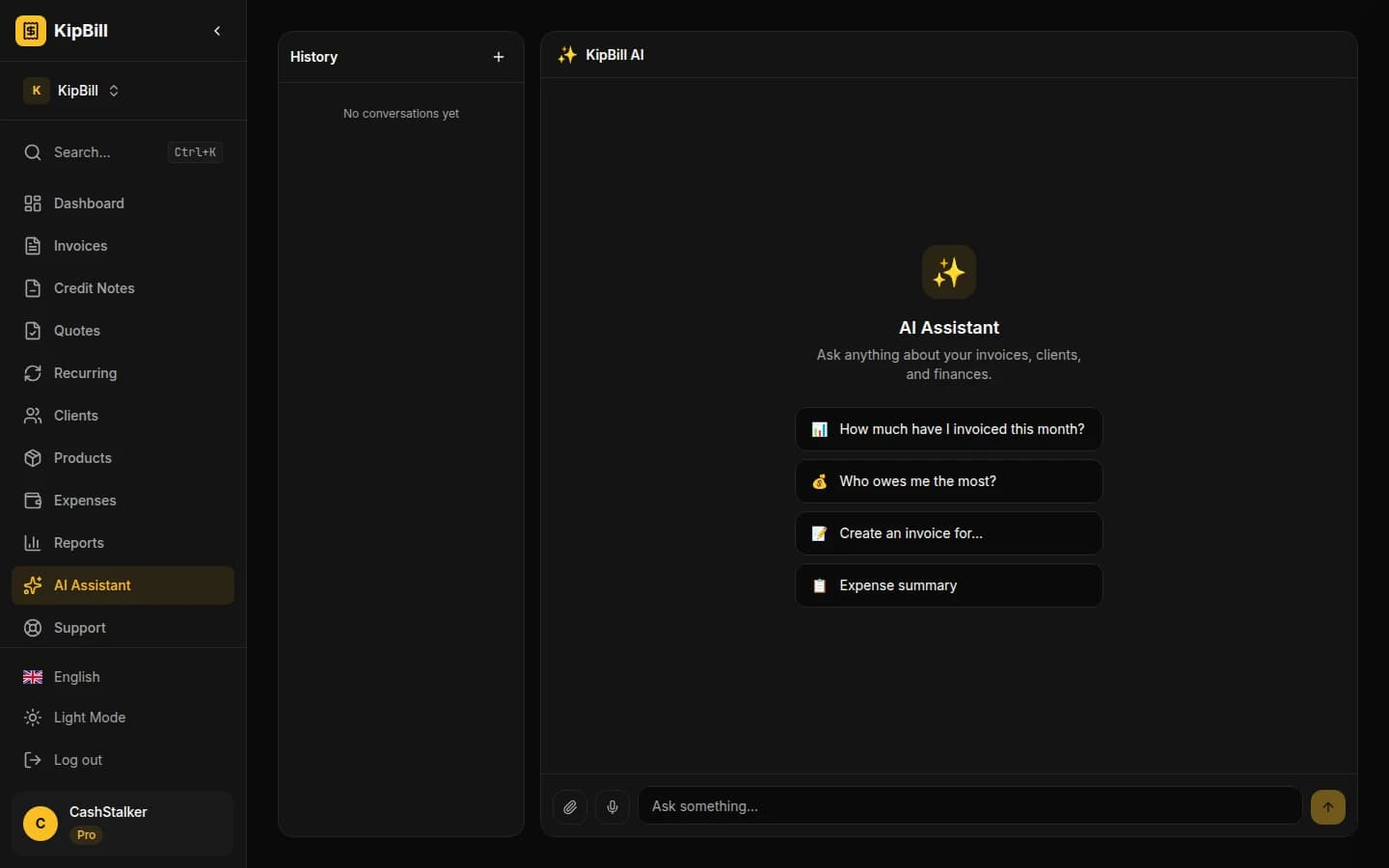
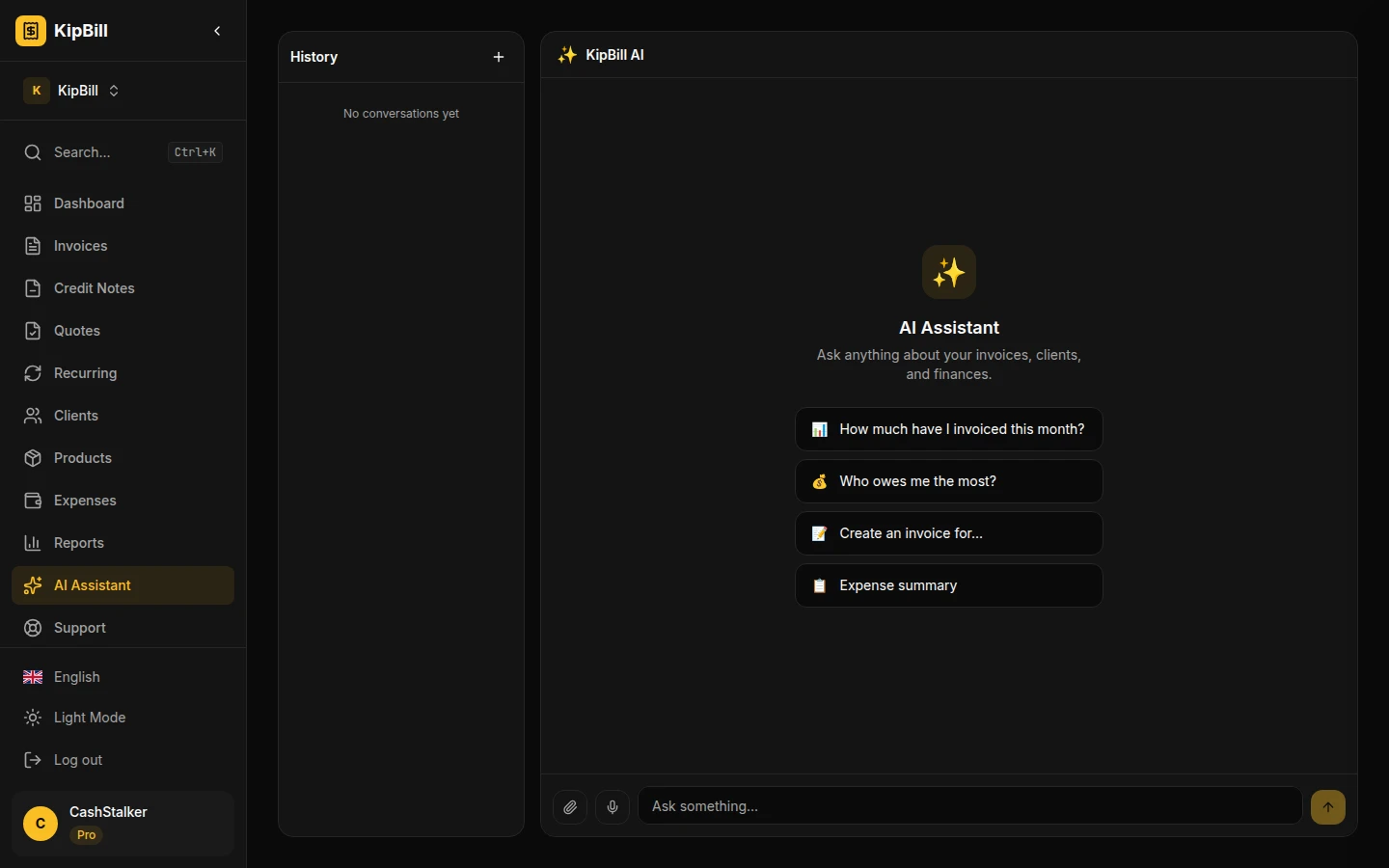
When you open the AI assistant, you'll see a dedicated chat page with conversation history on the left and the chat area on the right. The interface includes suggested prompts to help you get started.
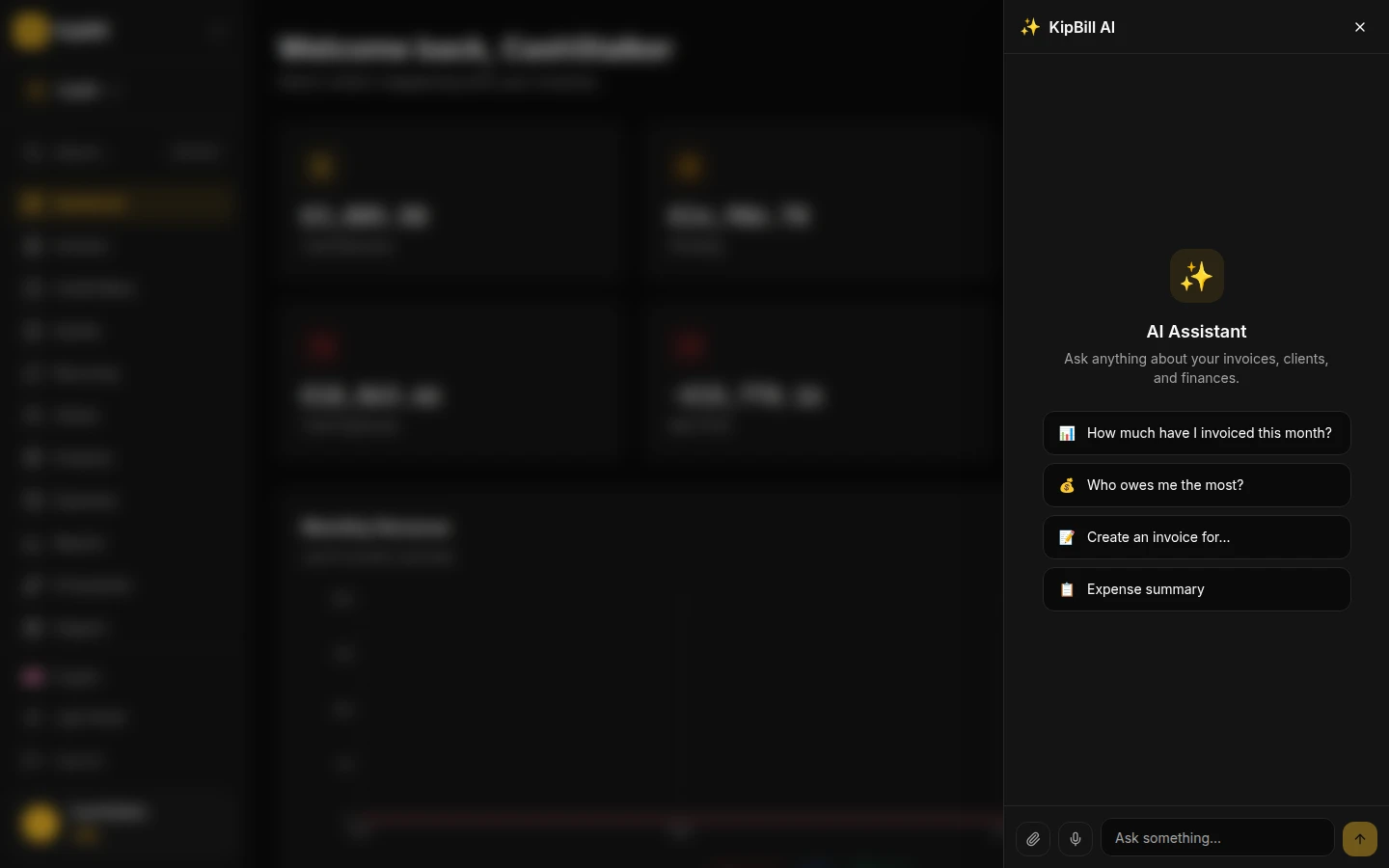
You can also access the AI from anywhere in the dashboard through a floating panel — press Cmd+J (or tap the AI button on mobile) and it slides in as a sidebar without leaving your current page.
The AI remembers your full conversation context, so you can have multi-turn dialogues like "create an invoice for Maria" followed by "actually, add one more line item" followed by "now send it to her."
AI Invoice Generator: Create Invoices with Natural Language
This is the core use case. Instead of navigating to the invoice form, selecting a client, adding line items, setting tax rates, and clicking save — you just describe what you need.
Example: "Create an invoice for Acme Corp, 3 hours of web development at $120/hour, 10% tax"
The AI will:
- Search your client database for "Acme Corp"
- If found, create the invoice with the exact details you specified
- If not found, ask if you want to create the client first
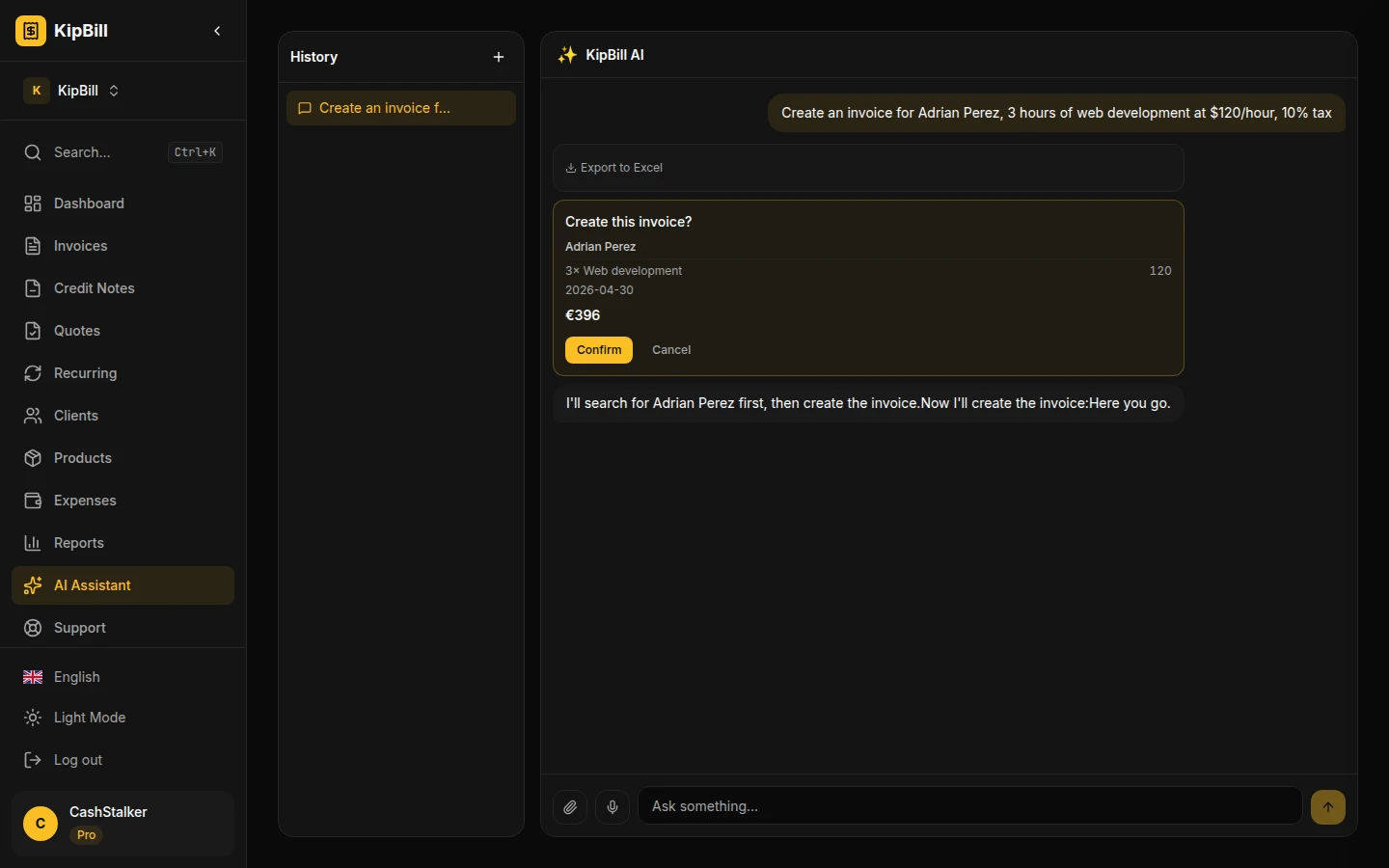
Notice how the AI is smart about validation — it won't create an invoice for a client that doesn't exist. It asks you first, offers to create the client, and then proceeds. This prevents orphaned invoices and keeps your data clean.
What you can include in a single message
The AI understands complex invoice requests:
- Multiple line items: "3 items: design mockups $2,500, development $4,000, deployment $1,500"
- Tax rates: "21% VAT" or "10% tax on all items"
- Discounts: "10% discount on the total" or "$200 off the design work"
- Withholding tax: "15% IRPF withholding" (common in Spain, Italy, and other countries)
- Due dates: "due in 30 days" or "due date April 15"
- Notes: "add a note: payment via bank transfer only"
- Currency: "in euros" or "in GBP"
- PDF template: "use the creative template" or "with the photography template"
Choose your PDF template from the chat
KipBill has 25 professional PDF templates, and you can pick any of them directly from the conversation. Just mention the template name when creating an invoice or quote:
"Create an invoice for Maria Lopez, branding package $3,500 and social media setup $1,200, use the creative template, 21% tax"
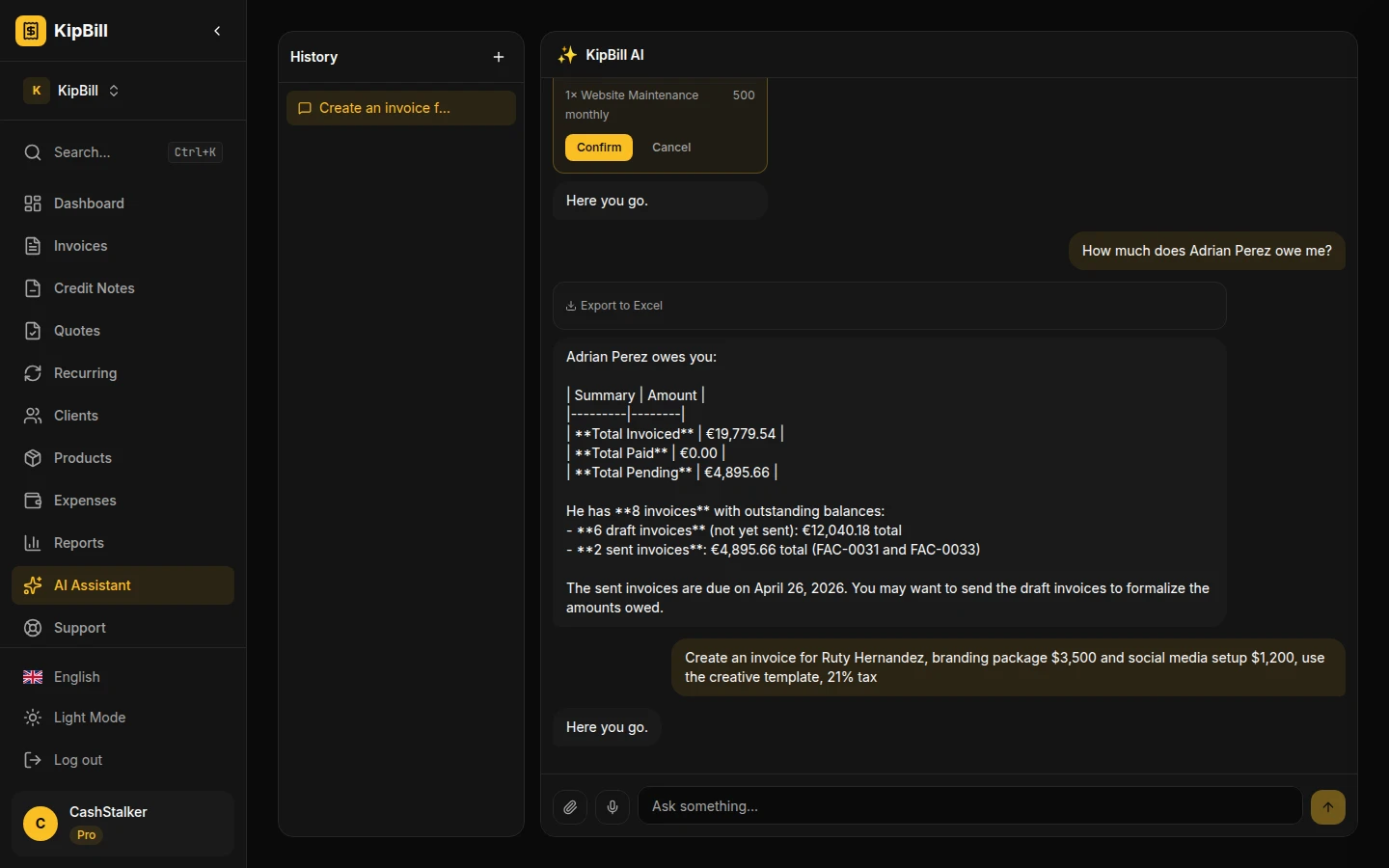
Available templates: modern, classic, minimal, elegant, bold, corporate, creative, startup, luxe, tech, nature, artisan, agency, consulting, retail, dental, florist, veterinary, construction, legal, fitness, photography, restaurant, education, and automotive. Each one is designed for a specific industry or style.
Confirmation cards
Every invoice the AI creates shows up as a confirmation card before it's finalized. You see the client name, line items, totals, and tax breakdown — and you can confirm or cancel.
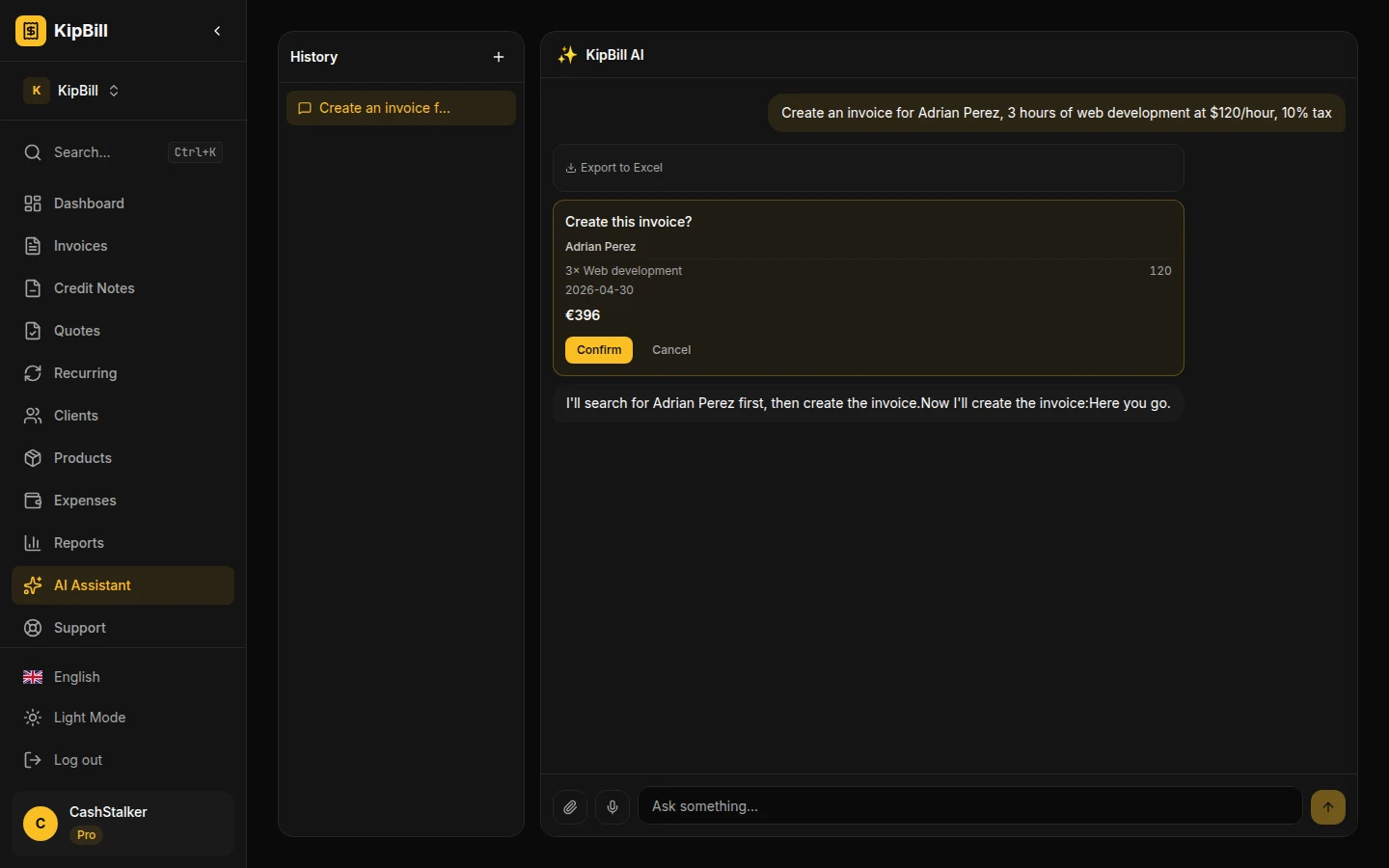
This applies to every action tool — invoices, quotes, credit notes, expenses, clients, products. Nothing is created without your explicit click.
Sending invoices, quotes, and reminders by email
Once an invoice is created, you can send it with a single message:
- "Send it to the client"
- "Email the invoice to john@acme.com"
- "Send a payment reminder for invoice #INV-042"
- "Remind everyone who hasn't paid"
The AI sends the email with a professionally formatted PDF attached, using your business branding, template, and language. If you have custom SMTP configured, it uses that. Otherwise, it sends through our email infrastructure.
You can chain actions in a conversation: "Create an invoice for Maria, 5 hours at $100, 21% VAT" → [confirm] → "Now send it to her" → [confirm]. Two messages, full invoice sent.
Creating and managing clients
No need to leave the chat to add a client. The AI handles client creation with full details:
"Create a new client: TechStart Inc, email hello@techstart.io, based in Germany, tax ID DE123456789"
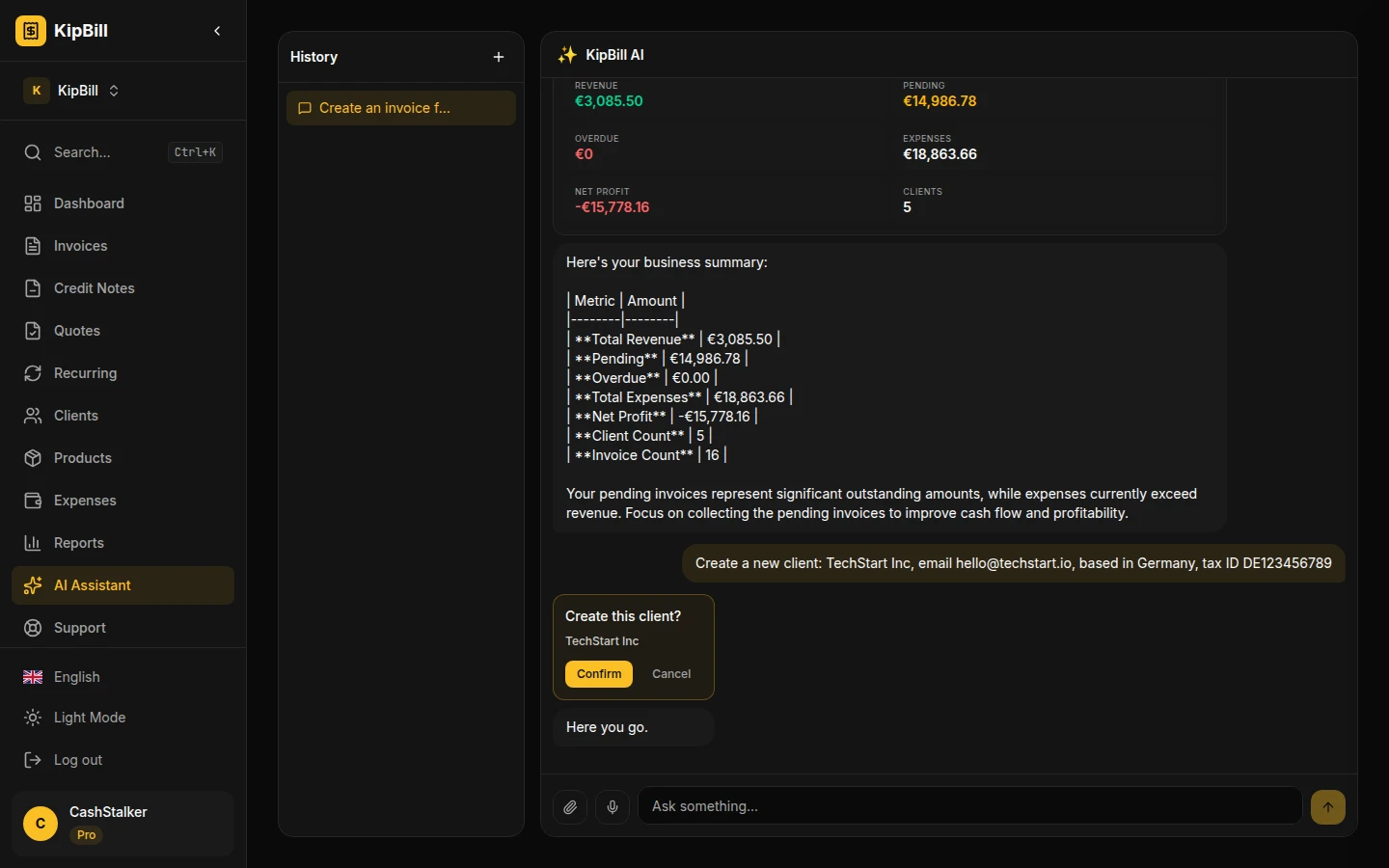
Client management tools
| Action | Example message |
|---|---|
| Create client | "New client: Sarah at Design Co, sarah@designco.com" |
| Update client | "Update TechStart's email to billing@techstart.io" |
| Search clients | "Find all clients in Germany" |
| Client balance | "How much does TechStart owe me?" |
| Bulk import | Attach a CSV/Excel file and say "Import these as clients" |
The search uses fuzzy matching — it handles typos, accents, and partial names. If you say "find tech start" it'll match "TechStart Inc."
Quotes and proposals
The AI creates quotes with the same ease as invoices:
"Create a quote for TechStart Inc for a website redesign: design mockups $2,500, frontend development $4,000, testing & deployment $1,500, 19% VAT"
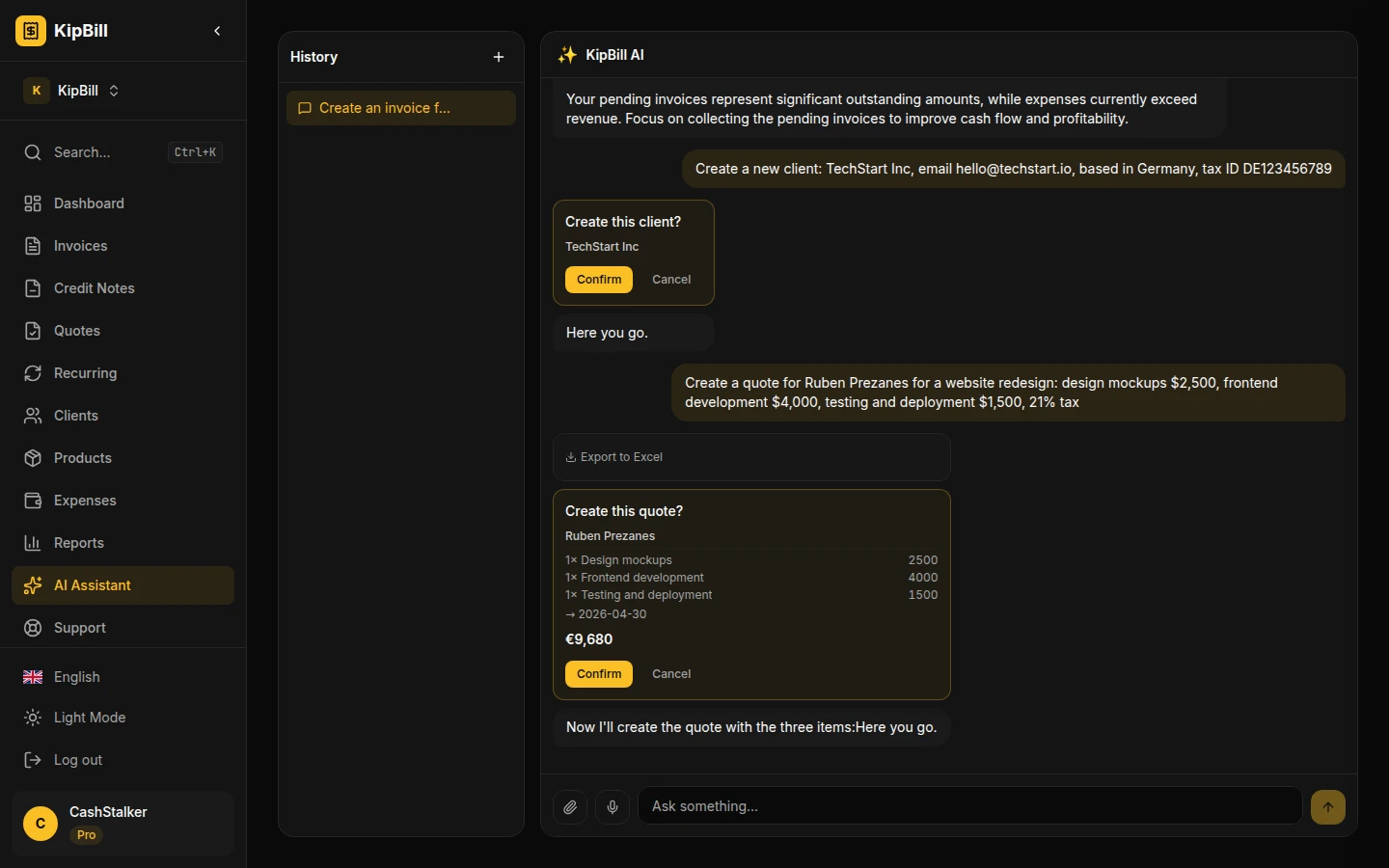
Full quote lifecycle through chat
- Create: "Quote for Maria: branding package, 3 items..."
- Edit: "Change the development line to $4,500"
- Send: "Send the quote to the client"
- Duplicate: "Duplicate this quote for another client"
- Convert: "Convert the accepted quote to an invoice"
When a client accepts a quote (through the client portal with e-signature), you can convert it to an invoice with one message.
Expense tracking
Recording expenses is just as simple:
"Record an expense: Adobe Creative Cloud subscription, $54.99, category software, paid today"
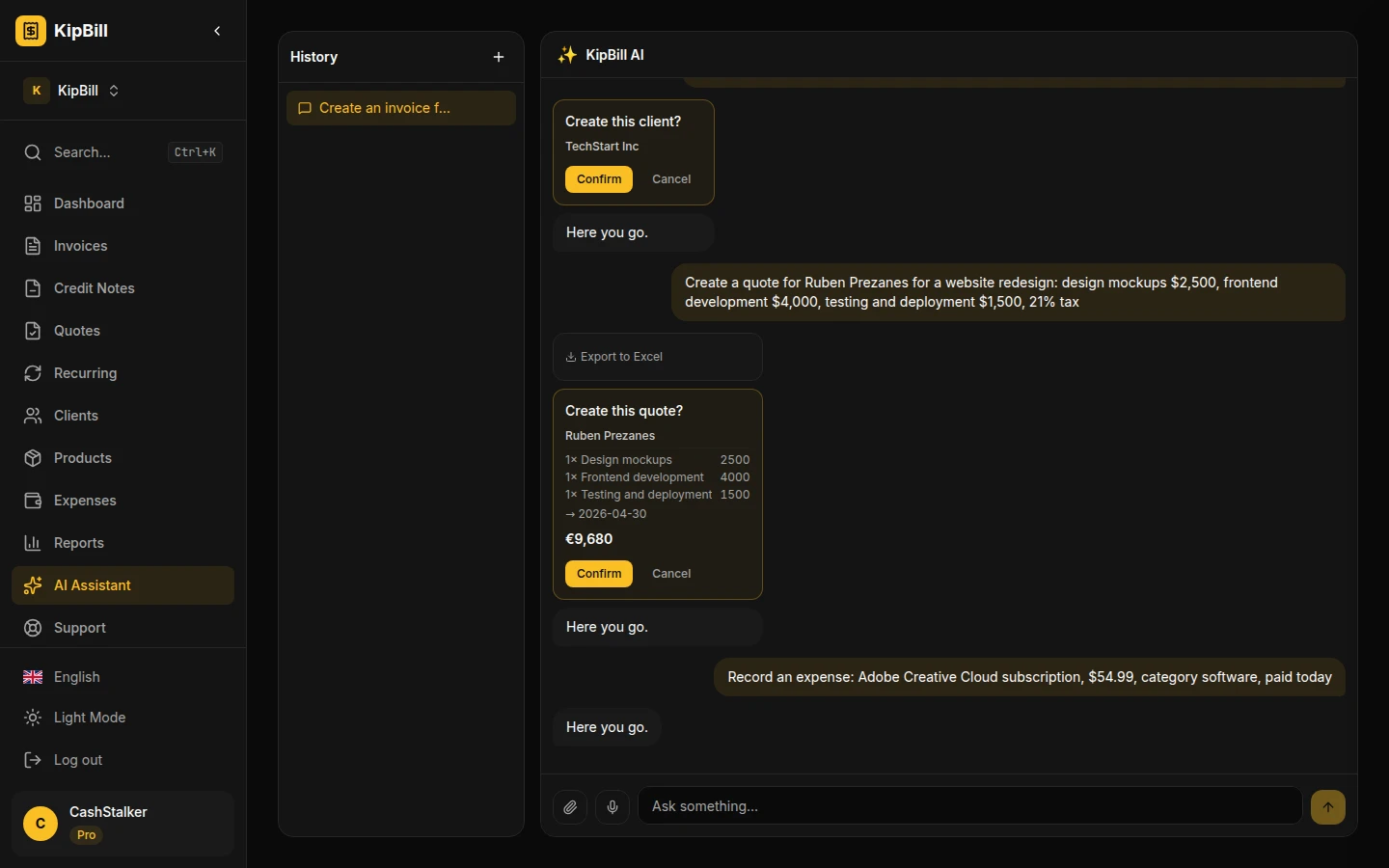
The AI understands common expense categories (software, travel, office, materials, meals, marketing, and more) and will categorize automatically if you don't specify one.
Receipt scanning with AI vision (OCR)
This is a separate AI feature that doesn't go through the chat — it's built directly into the expense form. When you create a new expense, you can upload a photo of a receipt (JPEG, PNG, WebP, or HEIC, up to 5MB) and AI extracts all the data automatically.
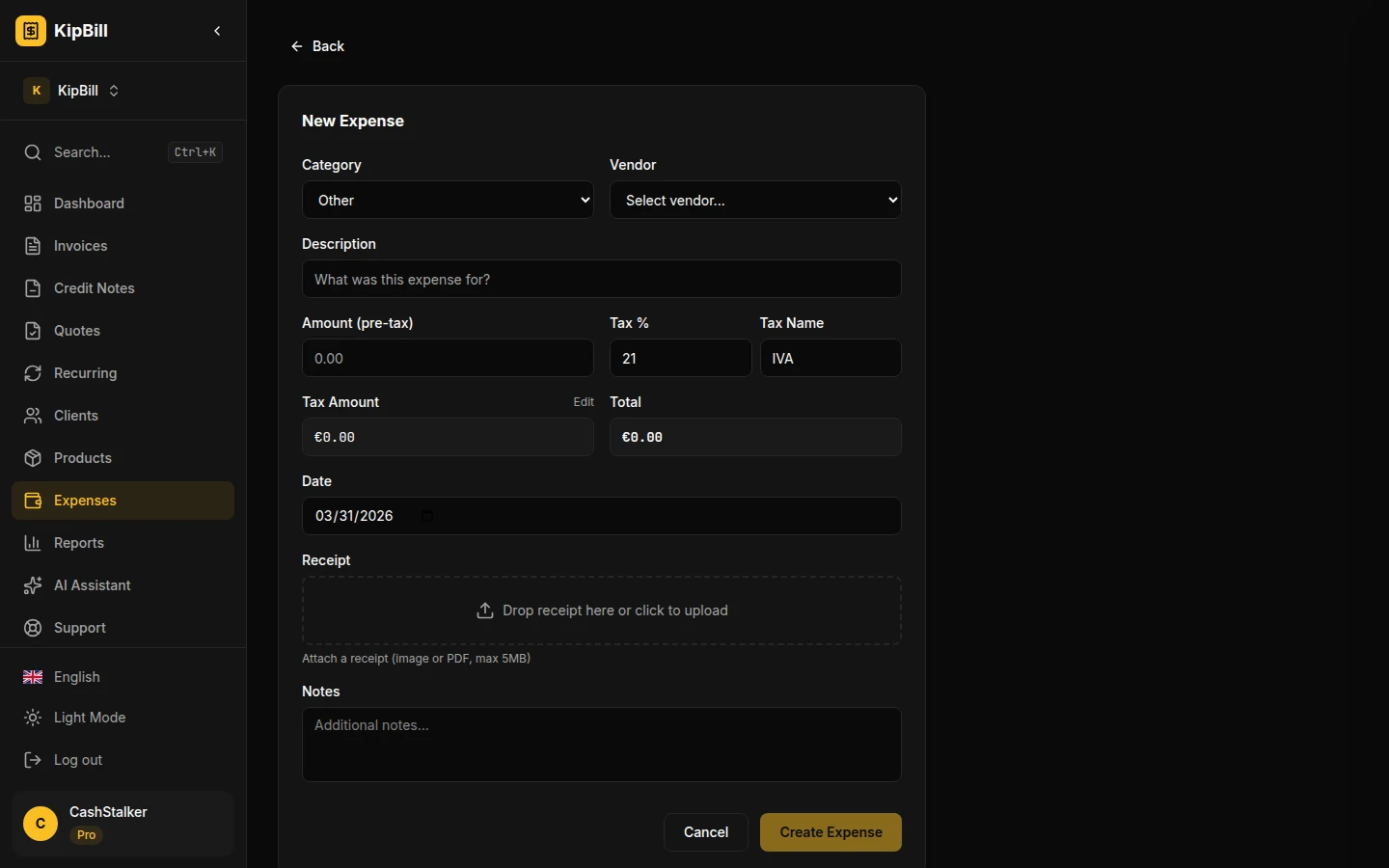
The OCR uses Claude's vision capabilities (same Anthropic AI) to read the receipt and extract:
- Vendor name — the merchant or business on the receipt
- Amount — the subtotal before tax (it calculates this even if only the grand total is shown)
- Tax rate — detected from the receipt
- Category — auto-categorized (materials, travel, software, office, marketing, etc.)
- Date — from the receipt, or today's date if not visible
- Currency — detected from the receipt symbols or formatting
All of this happens in one click. Upload the photo, the form auto-fills with the extracted data, you review and save. No manual data entry.
Receipt scanning is available on all plans. Free plan users get 5 scans per month. Paid plans have higher or unlimited scan limits.
Financial reports and charts — in the chat
This is where the AI goes beyond what most invoicing tools offer. Instead of navigating to a reports page, you can ask questions and get visual answers right in the conversation.
Revenue overview
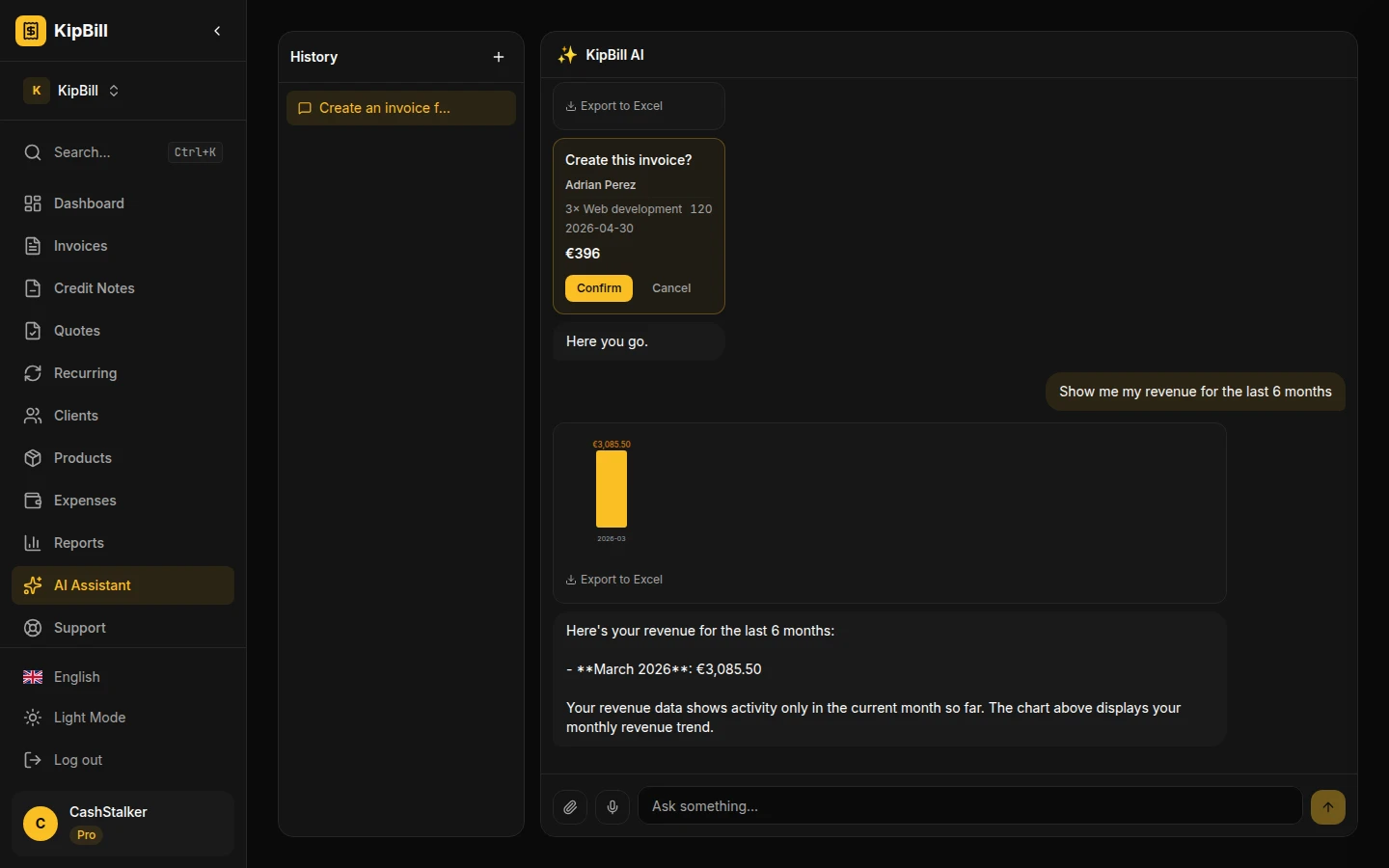
"Show me my revenue for the last 6 months"
The AI generates an actual bar chart showing your monthly revenue, right inside the chat window.
Business stats dashboard
"Give me a summary of my business stats"
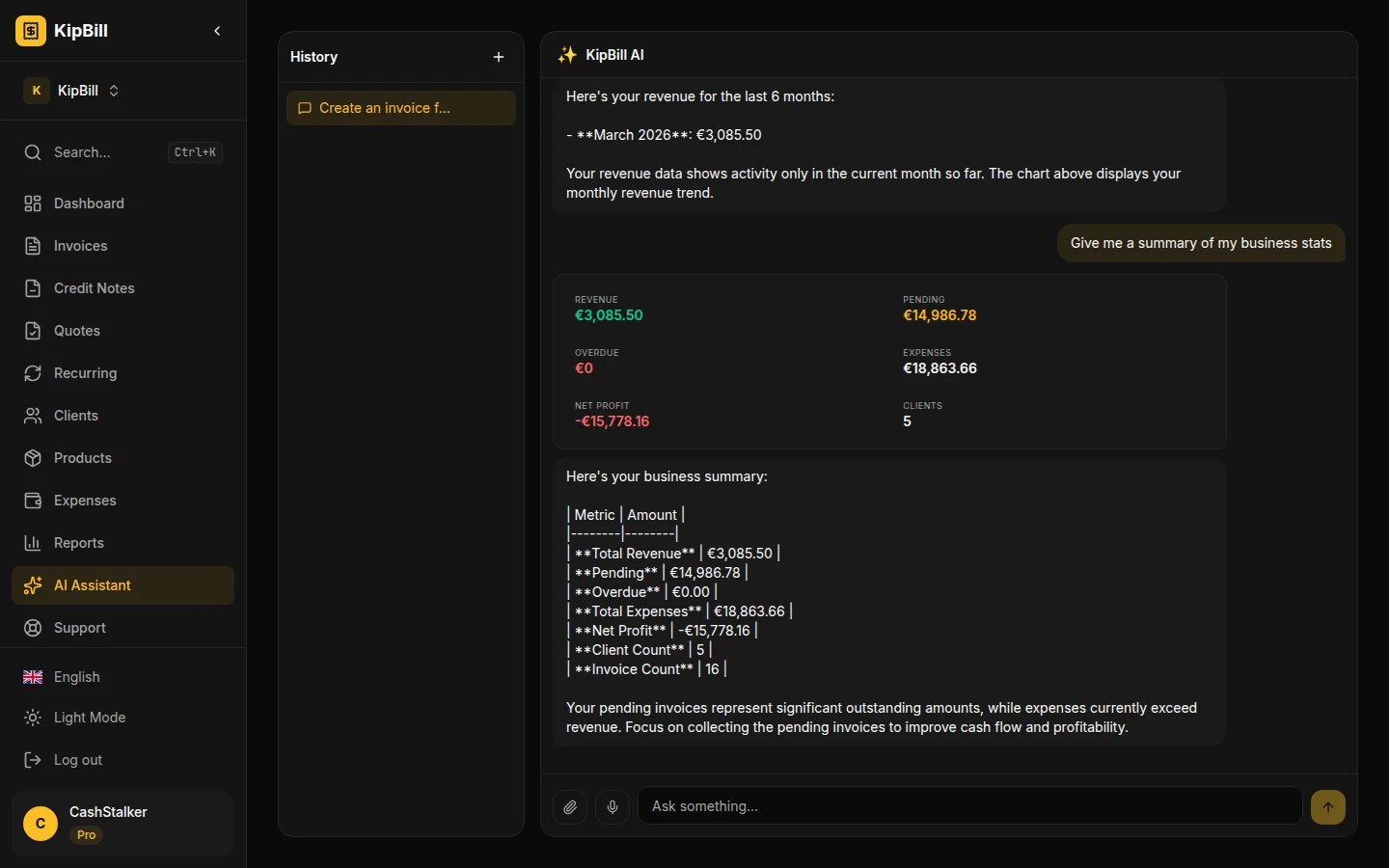
The AI pulls real-time data and presents:
- Total revenue (paid invoices)
- Pending payments
- Overdue amounts
- Total expenses
- Net profit
- Active client count
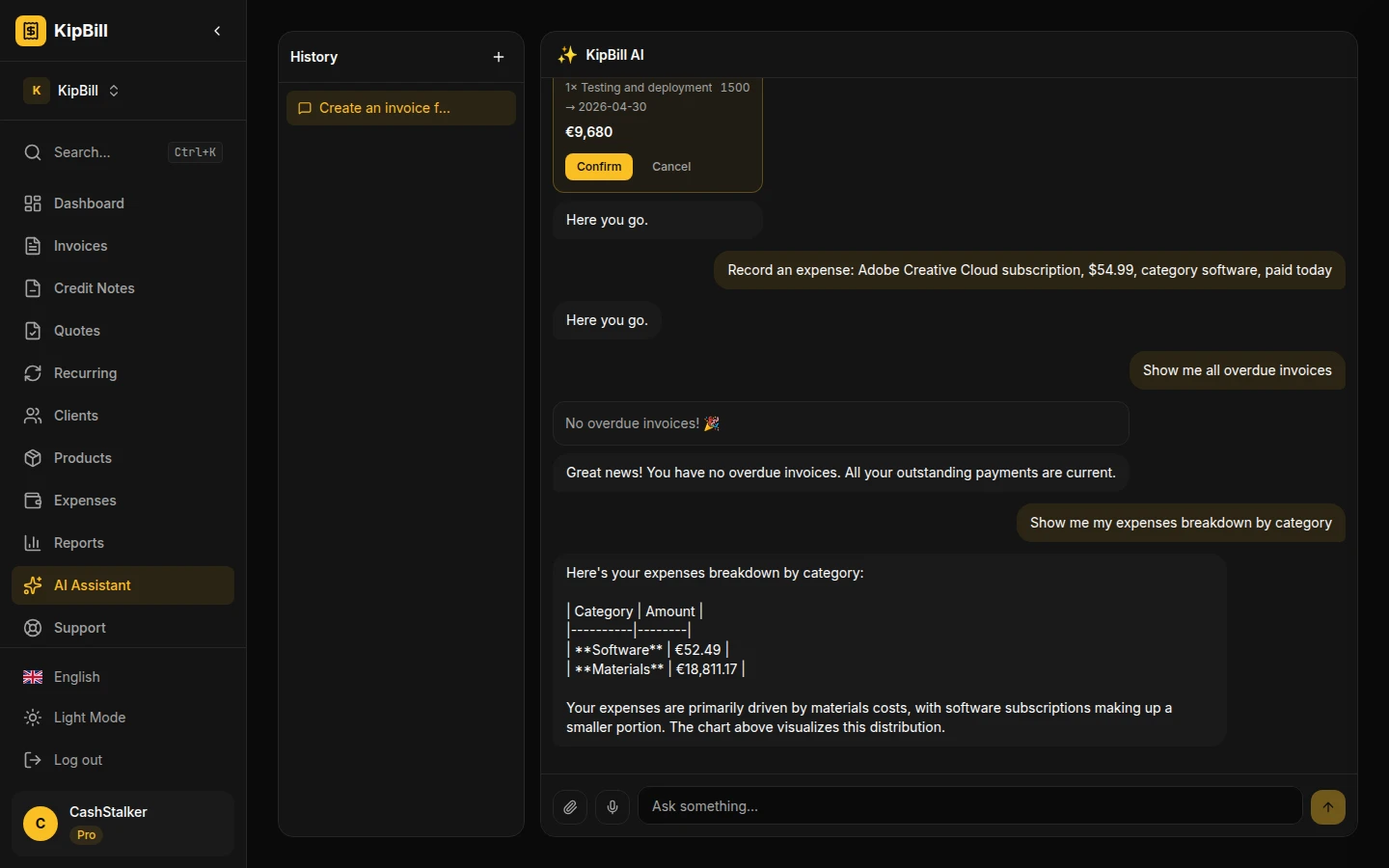
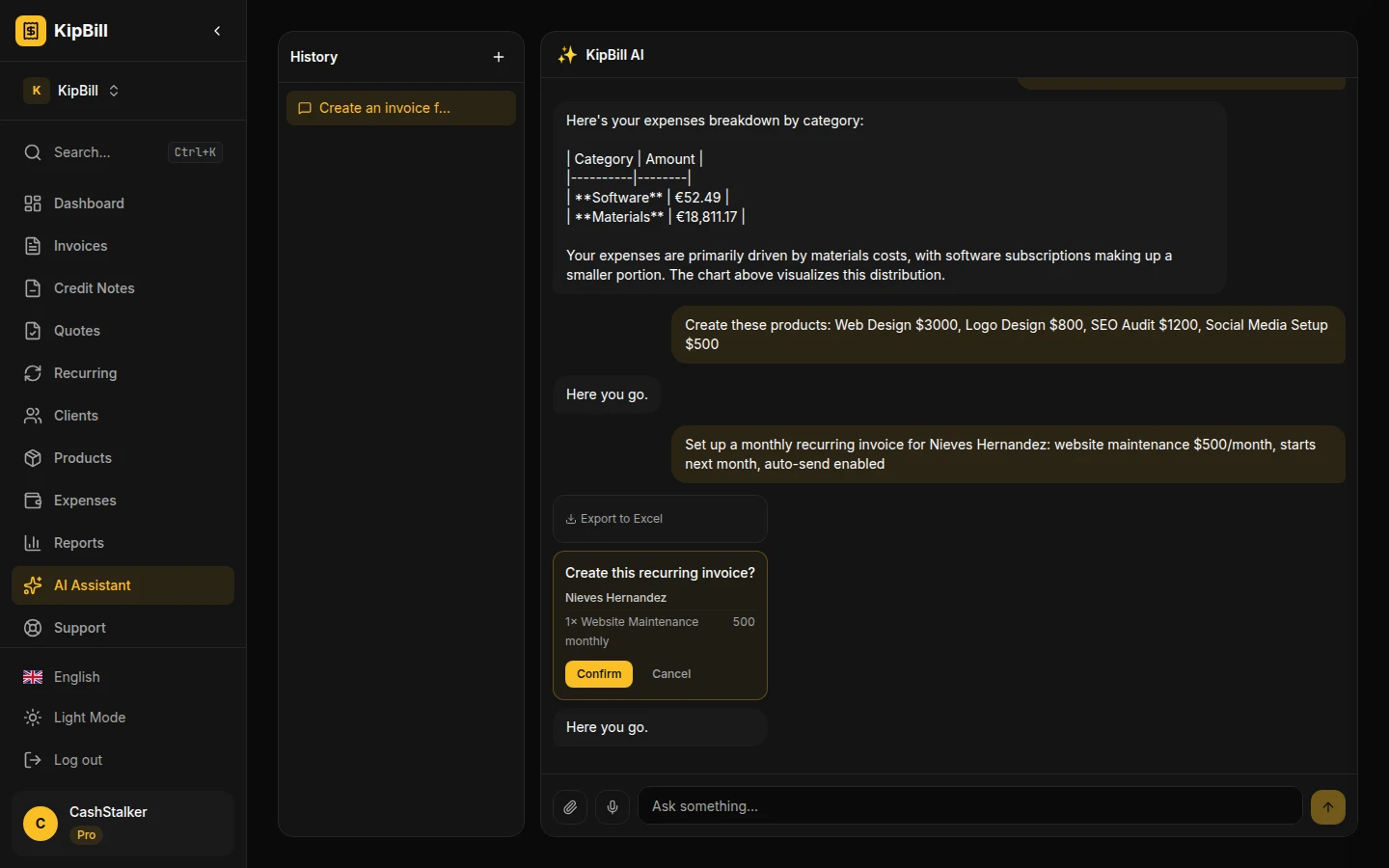
Expense breakdown
"Show me my expenses breakdown by category"
Profit & Loss report
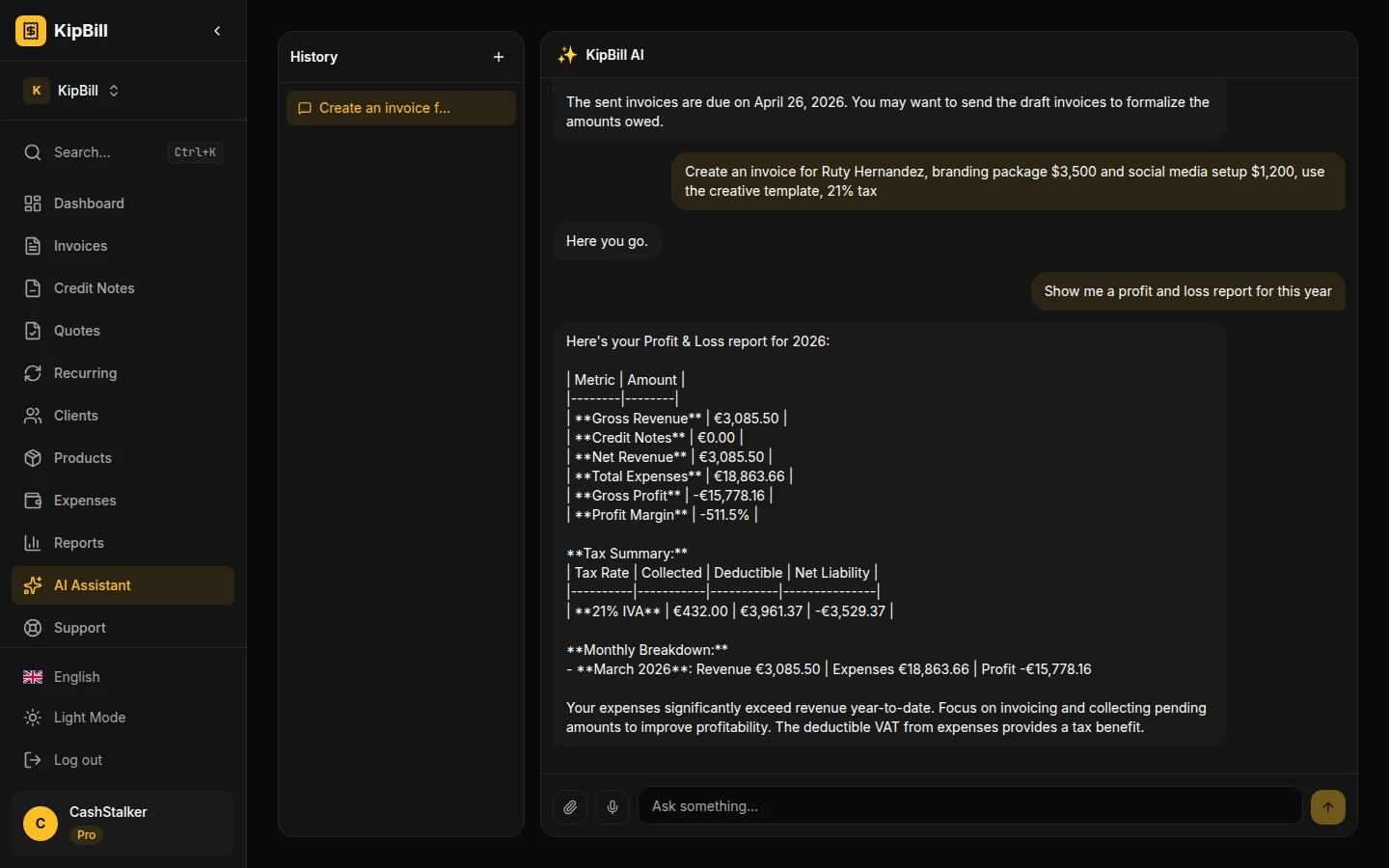
"Show me a profit and loss report for this year"
The AI generates a complete P&L breakdown with revenue, expenses, and net profit by month — presented as a table with totals.
Tax summary
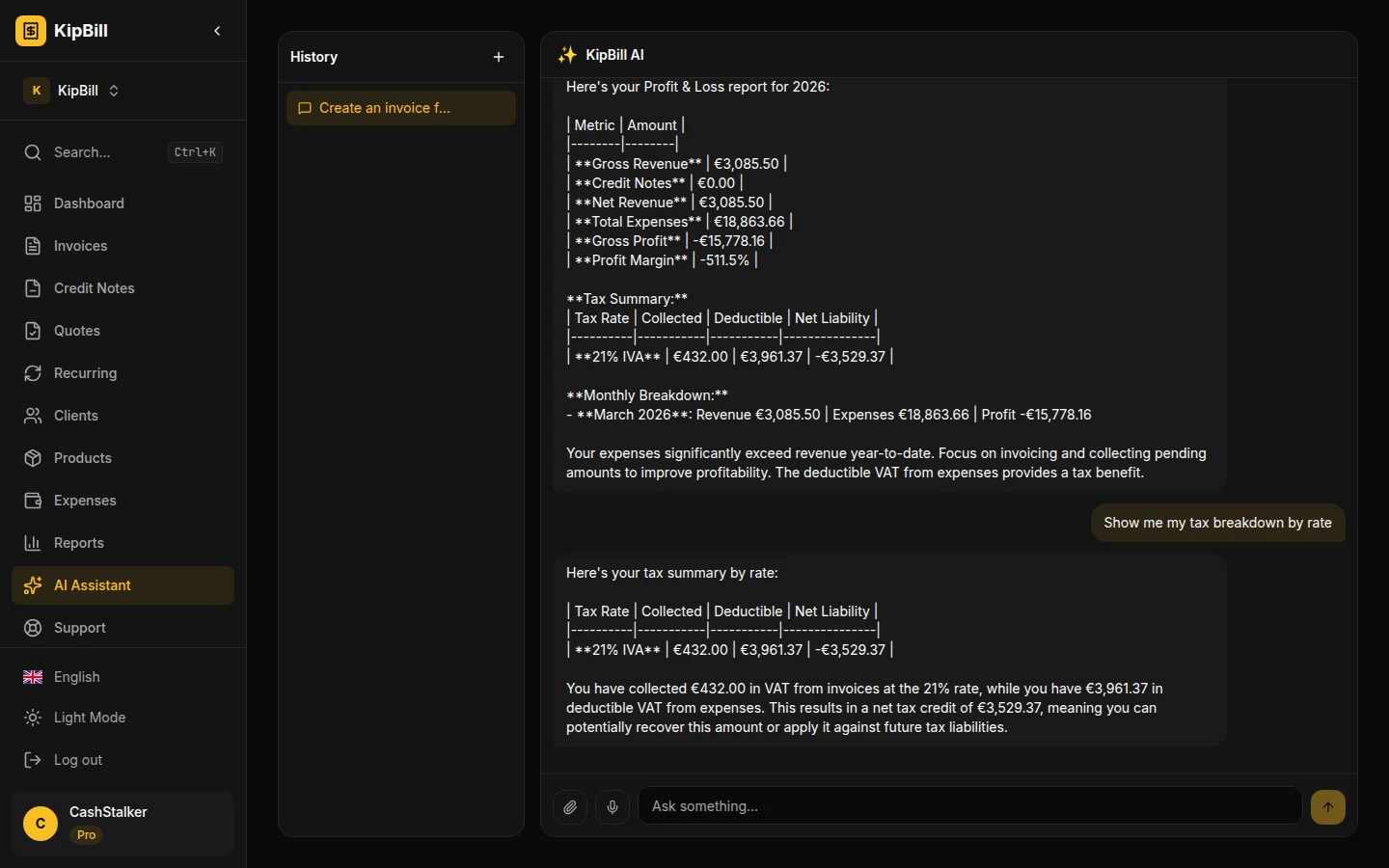
"Show me my tax breakdown by rate"
See exactly how much tax you've collected at each rate — essential for quarterly VAT/GST filings.
Top clients by revenue
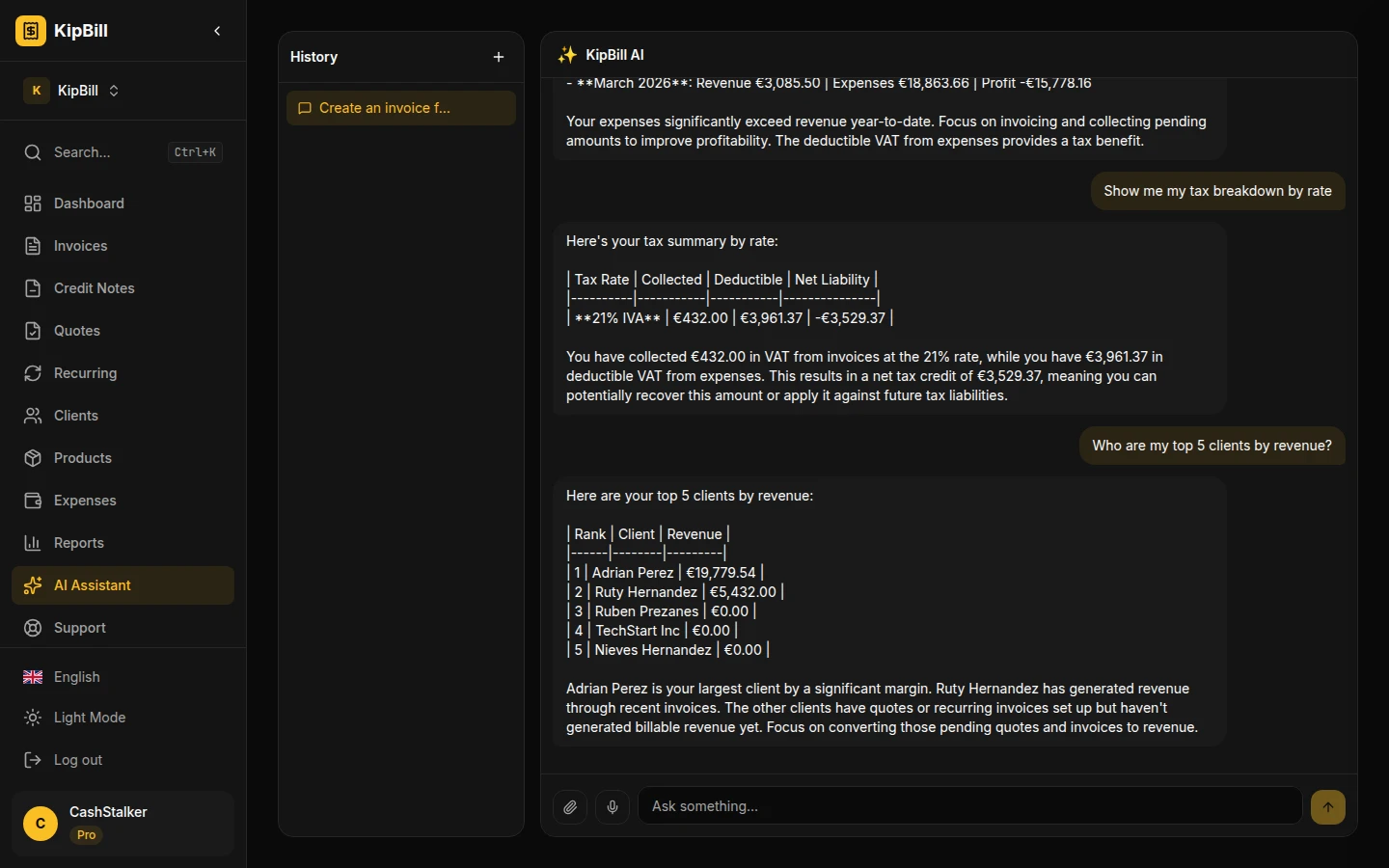
"Who are my top 5 clients by revenue?"
All available reports through chat
| Report | What to ask |
|---|---|
| Monthly revenue | "Show my revenue by month" |
| Profit & loss | "P&L report for this quarter" |
| Expenses by category | "Expense breakdown by category" |
| Tax summary | "Show tax breakdown by rate" |
| Top clients | "Who are my top clients by revenue?" |
| Overdue invoices | "Show all overdue invoices" |
| Client balance | "How much does [client] owe?" |
| Product stats | "Which products sell the most?" |
| Low stock | "Any products running low on stock?" |
Every report that returns numerical data renders as an interactive chart — bar charts, horizontal bar charts, or grouped comparisons. No links to other pages, no downloads. The data is right there in the conversation.
Voice Invoicing: Generate Invoices by Speaking
Voice invoicing is the fastest way to generate an invoice. Instead of typing, filling forms, or navigating menus — you just speak. This changes everything for people who are busy, on the go, or just hate typing.
KipBill integrates OpenAI's Whisper model for speech-to-text transcription. Tap the microphone button, speak naturally, and the AI processes your voice into an action.
How voice input works
- Tap the microphone icon next to the text input
- Speak your request naturally — "Create an invoice for Maria, logo design, two thousand euros, twenty-one percent VAT"
- Whisper transcribes your speech with business-aware context
- The AI processes it exactly like a typed message
- You see the confirmation card and approve
Why it's accurate
We don't just send raw audio to Whisper. The transcription is enhanced with context from your account:
- Your client names — so "Maria Rodriguez" doesn't become "Maria Rodriguez" with wrong spelling
- Your product names — technical terms and product names are recognized correctly
- Your locale — Whisper knows which language you're speaking and optimizes accordingly
- Your currency — amounts are interpreted in your default currency
12 languages supported
Voice input works in all 12 languages KipBill supports: English, Spanish, French, German, Portuguese, Italian, Dutch, Polish, Japanese, Korean, Chinese, and Arabic. Speak in your language, and the AI responds in your language.
Voice input is perfect for mobile use. Open the app on your phone, tap the mic, describe the invoice while walking, confirm, done. No typing on a small screen.
Bulk operations from spreadsheets
If you're migrating from another tool or need to import data in bulk, the AI handles that too.
Attach an Excel (.xlsx) or CSV file to the chat and tell the AI what to do:
- "Import these as clients" — creates up to 100 clients at once
- "Create products from this spreadsheet" — bulk product creation
- "These are my expenses for January" — bulk expense recording
The AI reads the file, maps the columns to the right fields, and shows you a confirmation before importing. Maximum file size is 2MB.
Products and inventory management
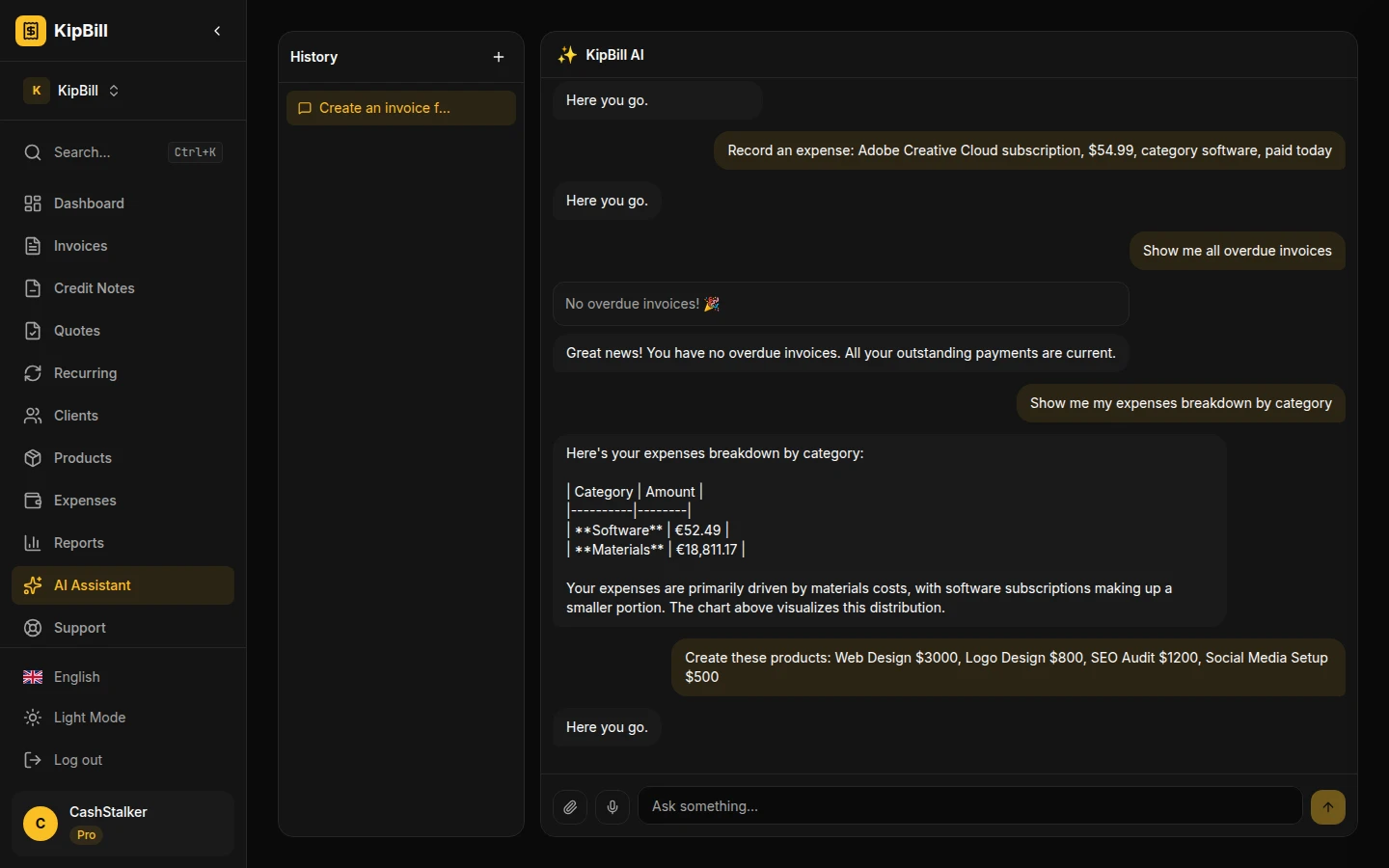
Create and manage products
- "Create a product: Web Design, $3,000, 21% tax"
- "Create these products: Web Design $3000, Logo Design $800, SEO Audit $1200, Social Media Setup $500"
Inventory tracking
- "Update stock for Web Design: 10 units"
- "Which products are running low on stock?"
- "How many Logo Design units have I sold?"
When you create an invoice for a product with inventory tracking enabled, the stock is automatically adjusted.
Recurring invoices
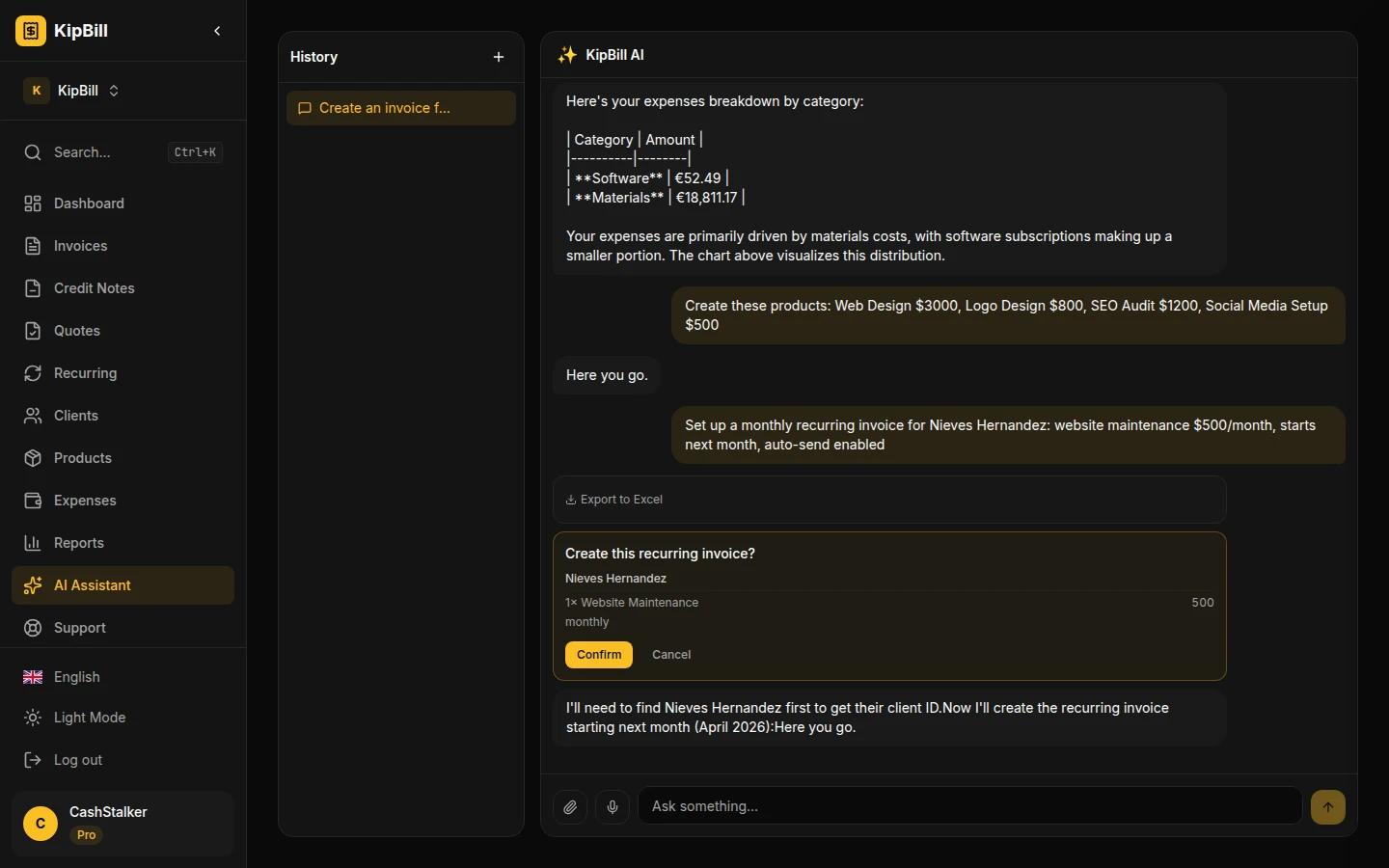
Set up automated billing schedules through conversation:
"Set up a monthly recurring invoice for Acme Corp: website maintenance $500/month, starts next month, auto-send enabled"
Recurring management
| Action | Example |
|---|---|
| Create schedule | "Monthly invoice for Maria: hosting $50, starts May 1" |
| Edit schedule | "Change the hosting amount to $60" |
| Pause | "Pause the recurring invoice for Acme" |
| Resume | "Resume it" |
| Delete | "Delete the recurring schedule" |
Recurring invoices are generated automatically by a daily cron job and can be auto-sent without any manual intervention.
Credit notes
When you need to issue a refund or correction:
- "Create a credit note for invoice #INV-042"
- "Send the credit note to the client"
- "Apply the credit note to reduce the outstanding balance"
The AI handles the full credit note lifecycle — creation, sending, and application to invoices.
Overdue invoice tracking
"Show me all overdue invoices"
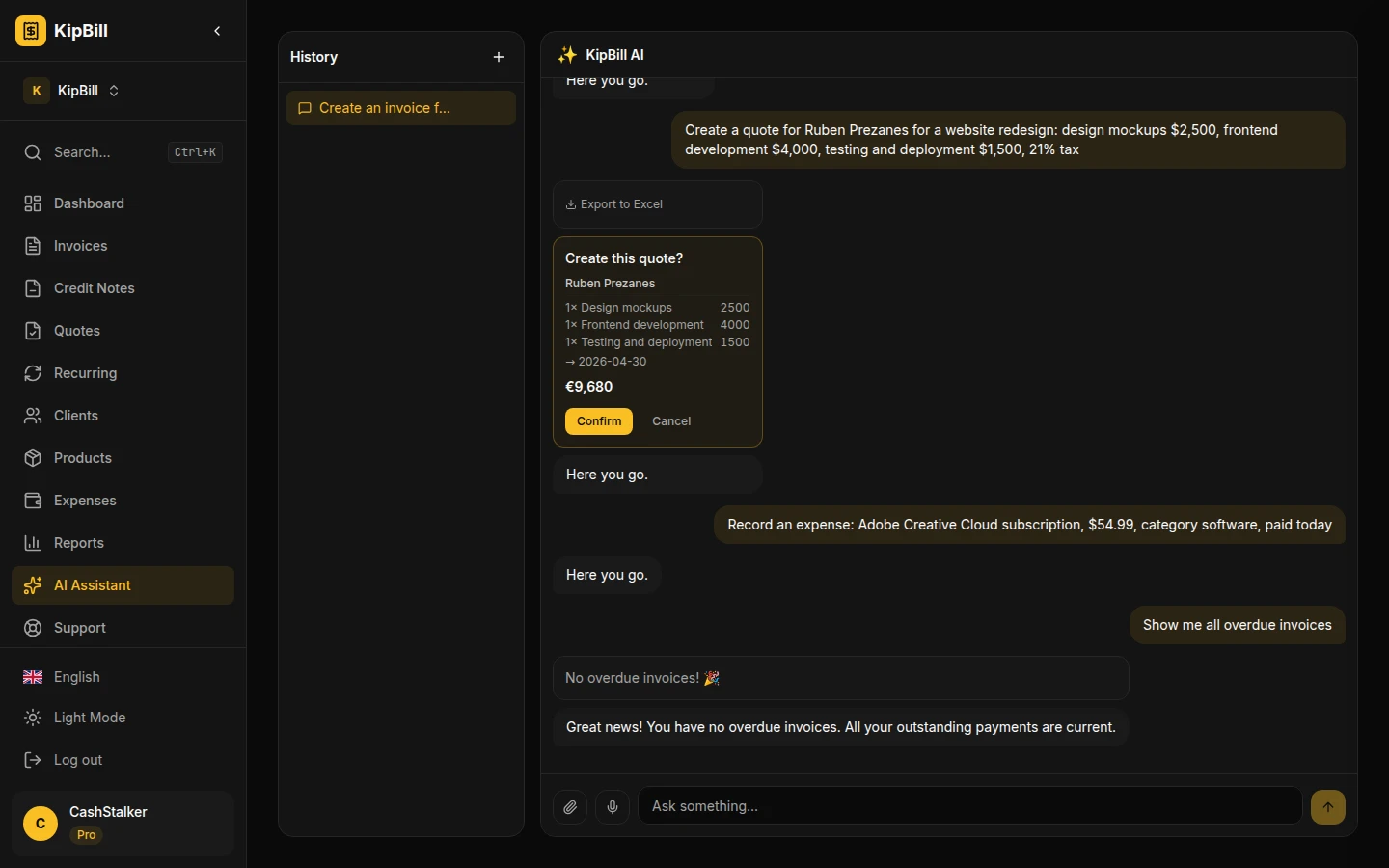
The AI shows each overdue invoice with:
- Invoice number and client
- Amount due
- Days overdue
- Original due date
From there, you can say "Send a reminder to all of them" and the AI sends personalized payment reminders.
Mobile experience
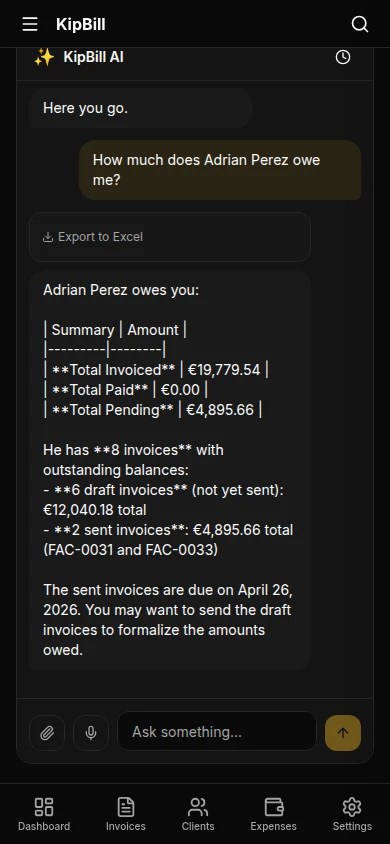
The AI assistant is fully responsive. On mobile, you get the same chat experience optimized for smaller screens, with the microphone button easily accessible for voice input.
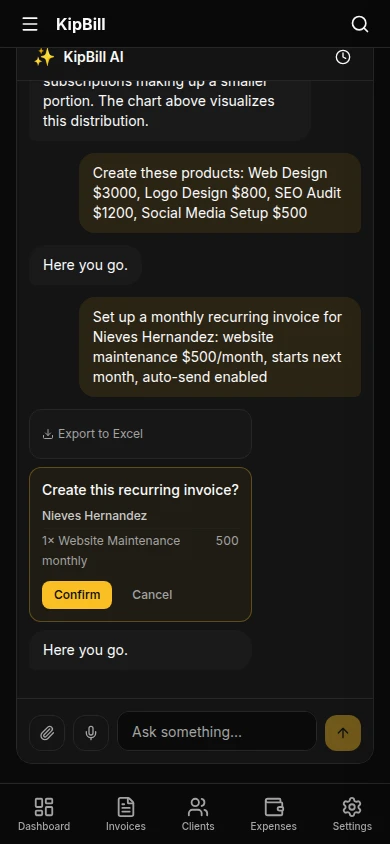
The conversation history is accessible through a bottom drawer (swipe up), and you can switch between conversations without losing context.
45 AI Tools: Everything the Invoice Generator Can Do
Here's every tool the AI assistant has access to — 45 tools in total:
Create (13 tools)
| Tool | What it does |
|---|---|
| Create invoice | Full invoice with items, tax, discounts, withholding |
| Create quote | Proposal/estimate with line items |
| Create client | New contact with all business details |
| Create expense | Business expense with category |
| Create credit note | Refund/correction for an invoice |
| Create product | Product or service for your catalog |
| Create recurring | Automated billing schedule |
| Bulk create clients | Up to 100 clients from text or file |
| Bulk create products | Up to 100 products at once |
| Duplicate invoice | Copy with optional changes |
| Duplicate quote | Copy with optional changes |
| Convert quote | Turn accepted quote into invoice |
| Record payment | Log payment against an invoice |
Send (4 tools)
| Tool | What it does |
|---|---|
| Send invoice | Email with PDF attachment |
| Send quote | Email with PDF attachment |
| Send credit note | Email with PDF attachment |
| Send reminder | Payment reminder to overdue client |
Update (8 tools)
| Tool | What it does |
|---|---|
| Update invoice | Edit draft invoice details |
| Update quote | Edit draft quote details |
| Update client | Change client information |
| Update product | Modify price, name, tax, SKU |
| Update stock | Adjust inventory levels |
| Update invoice status | Mark as paid, cancelled, etc. |
| Update recurring | Change frequency, items, dates |
| Pause/resume recurring | Toggle schedule on/off |
Query (16 tools)
| Tool | What it does |
|---|---|
| Search clients | Fuzzy matching with accent support |
| Search invoices | By number, status, or client |
| Search quotes | By number, client, or status |
| Search credit notes | By invoice or client |
| Search products | By name or SKU |
| Search recurring | List all schedules |
| Business stats | Revenue, pending, overdue, expenses, profit |
| Revenue by period | Monthly revenue chart |
| P&L report | Profit vs. expenses by month |
| Expenses summary | Breakdown by category |
| Tax summary | Breakdown by tax rate |
| Top clients | Ranked by revenue |
| Overdue invoices | With days overdue |
| Client balance | Total invoiced, paid, and due |
| Product stats | Sales and inventory data |
| Low stock alert | Products below threshold |
Delete (4 tools)
| Tool | What it does |
|---|---|
| Delete invoice | Soft delete draft invoices only |
| Delete quote | Delete draft quotes only |
| Delete recurring | Permanently remove schedule |
| Apply credit note | Reduce invoice balance |
Privacy and data handling
We take data privacy seriously, especially with AI features:
- Explicit consent required — a privacy dialog appears before your first AI interaction. You must accept before any data is processed. You can revoke consent at any time. Read more about our security practices.
- No training on your data — your invoicing data is never used to train AI models
- Secure transmission — all AI interactions go through encrypted HTTPS connections
- Your data stays yours — we process the minimum context needed for each request
If you decline the AI consent dialog, all AI features are completely hidden from your dashboard. No data is ever sent to AI providers without your permission.
Pricing and AI access
The AI assistant is available on every plan, including free:
| Plan | AI messages | Price |
|---|---|---|
| Free | 10/month | $0 |
| Starter | 30/month | Low |
| Pro | 100/month | Low |
If you know anything about AI API costs — Claude API calls plus Whisper transcriptions on every interaction — you'll know these limits are generous for the price. We prioritized accessibility over margins.
Getting started
- Sign up at kipbill.com — free, no credit card
- Create your business — name, country, currency
- Open the AI assistant — click "AI Assistant" in the sidebar or press Cmd+J
- Accept the privacy consent — one-time dialog
- Start talking — type or tap the mic and describe what you need
Your first AI-generated invoice is literally one sentence away.
If you're not ready to sign up yet, try our free invoice generator tool — no account needed. Or see how KipBill compares to other options in our best free invoicing software 2026 guide.
Start invoicing for free
Create professional invoices in minutes with KipBill, like freelancers and small businesses in 40+ countries.
FAQ
Is the AI assistant available on the free plan?
Yes. Free plan users get 10 AI messages per month, including voice input. No credit card required.
Which AI models does KipBill use?
Claude Haiku 4.5 by Anthropic for the conversational assistant, and OpenAI Whisper for voice-to-text transcription.
Can the AI send invoices without my permission?
No. Every action — creating, sending, deleting — shows a confirmation card that you must approve before anything happens.
Does voice input work on mobile?
Yes. The microphone button is available on both desktop and mobile. Tap it, speak, and the AI processes your request.
In which languages does the AI work?
12 languages: English, Spanish, French, German, Portuguese, Italian, Dutch, Polish, Japanese, Korean, Chinese, and Arabic. The AI responds in whatever language your account is set to.
Can I import data from my current invoicing tool?
Yes. Export your clients or products as a CSV or Excel file, attach it to the AI chat, and say "import these as clients" or "create products from this file." The AI processes up to 100 entries at once.
Is my data safe with the AI?
Yes. All interactions are encrypted, your data is never used for AI training, and you can revoke AI consent at any time. Nothing is processed without your explicit permission.
Can the AI generate financial reports?
Yes. Ask for revenue charts, profit & loss reports, expense breakdowns, tax summaries, top clients, and more. Reports render as interactive charts directly in the chat.

KipBill Team
Related Articles
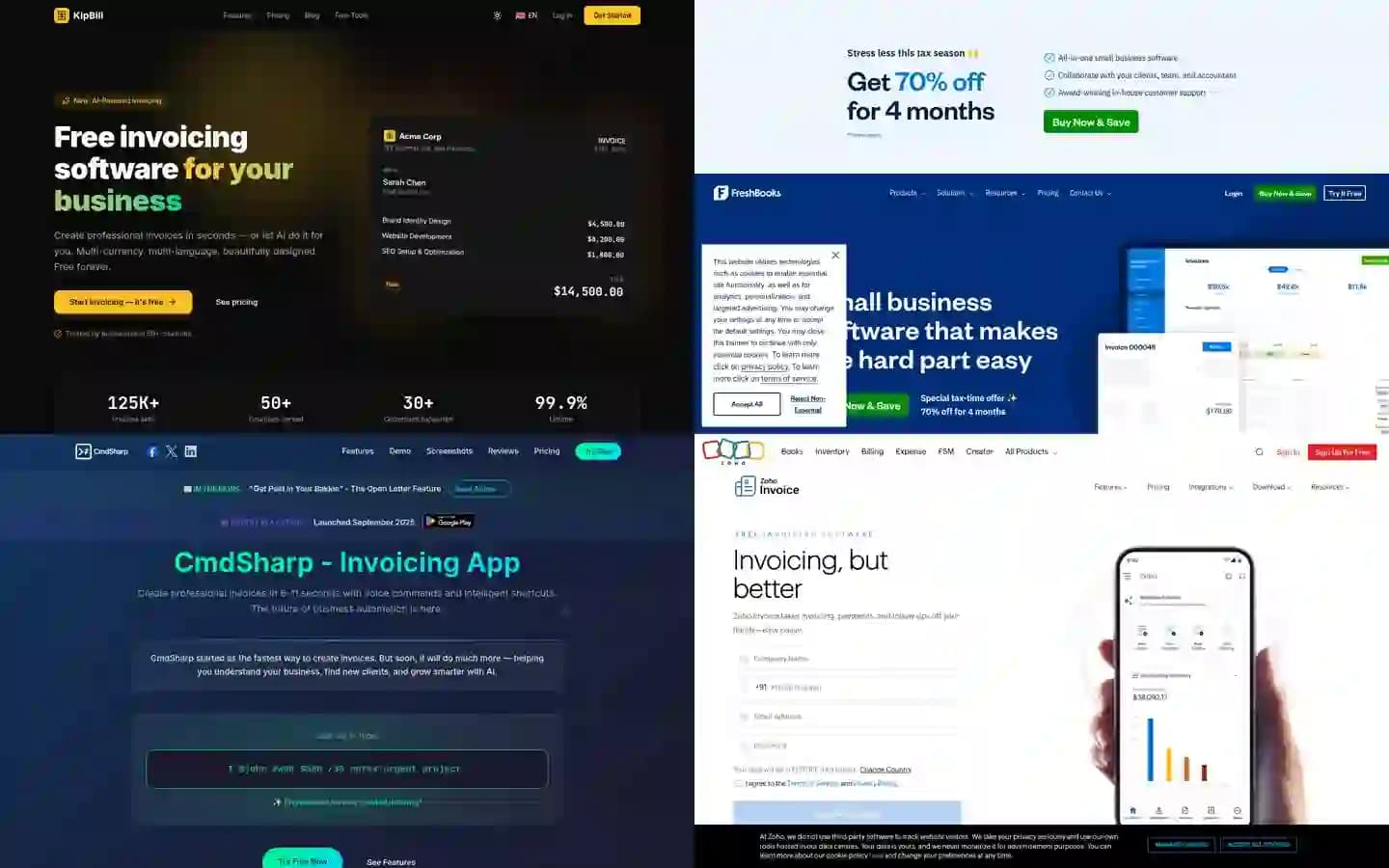
7 Best AI Invoicing Software in 2026 (Tested & Compared)
We tested 7 AI invoicing platforms head-to-head. Voice commands, conversational AI, receipt scanning — see which one actually delivers. Real features, real pricing, honest comparison.

How to Invoice International Clients: A Freelancer's Guide
How to invoice international clients: which currency to use, cutting transfer fees, VAT and reverse charge, and the best ways to get paid on time.

Invoicing for Tutors and Teachers: The Complete Guide
How tutors and teachers should invoice students: per-session vs. package billing, recurring invoices, sibling discounts, no-show policies, and parent receipts.
Start invoicing for free
Create professional invoices in minutes with KipBill, like freelancers and small businesses in 40+ countries.