How to send your accountant the quarter
 KipBill Team
With KipBill you can send your accountant everything for the quarter in one link. Open For your accountant in the menu, pick the quarter, type your accountant's email and press Send. They get an email with a link to a page, with no account and nothing to install, where they download a ZIP with every invoice and credit note as PDF, your expense receipts and an Excel with the sales and expense ledgers, the taxes by rate, the payments received and the totals.
If you prefer, switch it on once and it goes out by itself on the 3rd day after each quarter ends. It comes with the Starter, Pro and Business plans. This guide shows every step with real screenshots, and exactly what your accountant gets.
In short
- Where: in KipBill's menu, For your accountant.
- What your accountant gets: every invoice and credit note as PDF, your expense receipts and an Excel with a summary, the sales ledger, the expense ledger and the payments received.
- How it reaches them: an email with a link. No account, nothing to install, and the link works for 90 days.
- Period: a quarter, a month or a whole year.
- Automatic: if you switch it on, it goes out by itself on the 3rd day after each quarter ends and you get a copy.
- Language: the email and the Excel are in your accountant's language, which can differ from yours.
- Plan: Starter, Pro and Business. On Free you see what would go, without the amounts.
Step by step
Open For your accountant and pick the period
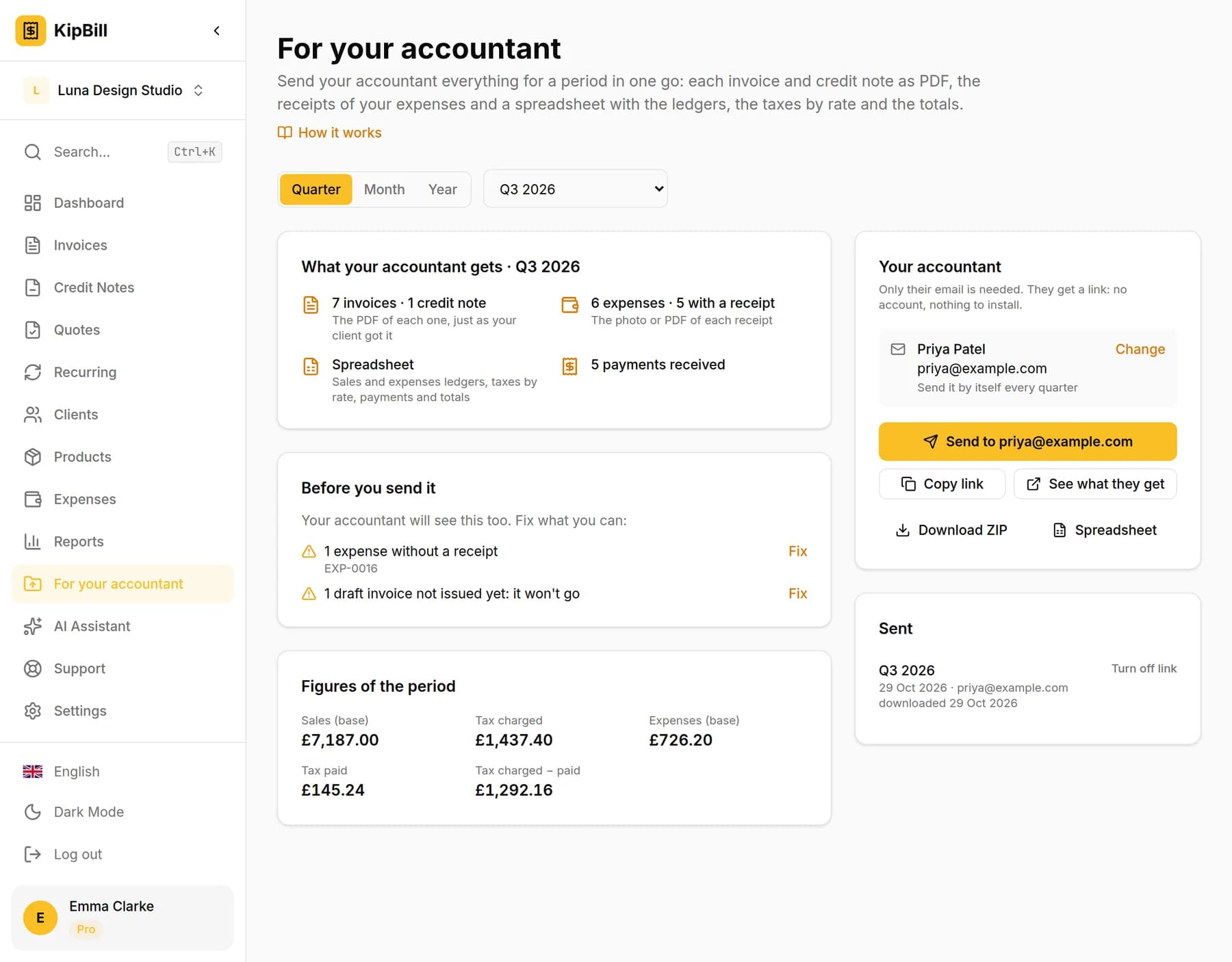
In KipBill's menu, press For your accountant. At the top, pick Quarter, Month or Year and, next to it, the exact period. It starts on the last quarter that has ended.
Below, What your accountant gets counts what goes in: invoices and credit notes, expenses (and how many have a receipt), payments received and the spreadsheet.
Check what is worth fixing
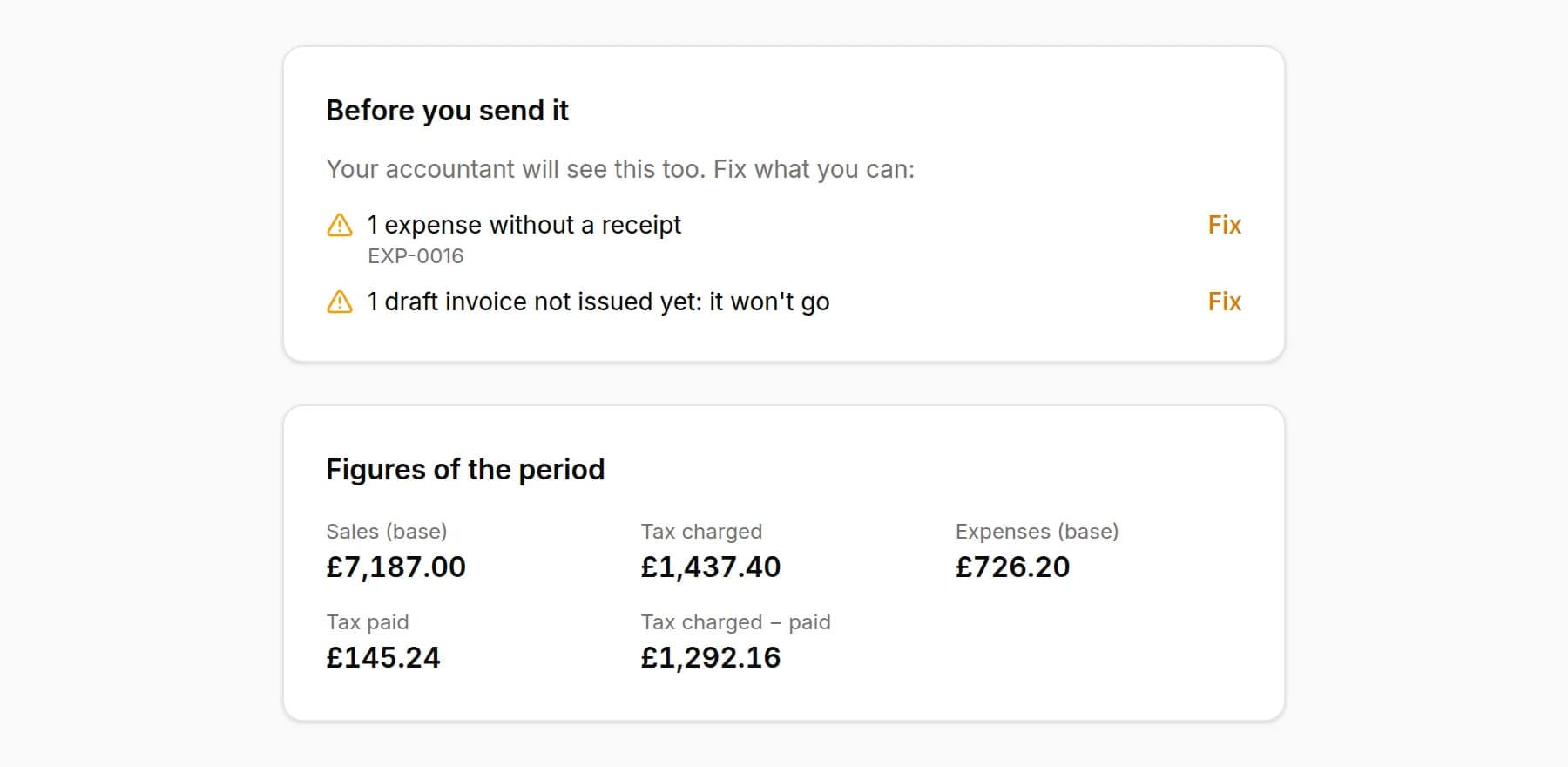
Under Before you send it, KipBill shows what your accountant will see too and is worth fixing first. Each note names the documents and has a Fix link:
- invoices without the client's tax ID;
- expenses without a receipt;
- draft invoices not issued yet, which won't go;
- credit notes sent but not applied, which don't count yet;
- cancelled invoices, which are listed but not counted;
- amounts in other currencies, which are kept apart and never added up.
Figures of the period shows the same as your accountant will see: sales (base), tax charged, withholding if you apply it, expenses (base), tax paid and the difference between tax charged and paid.
Add your accountant
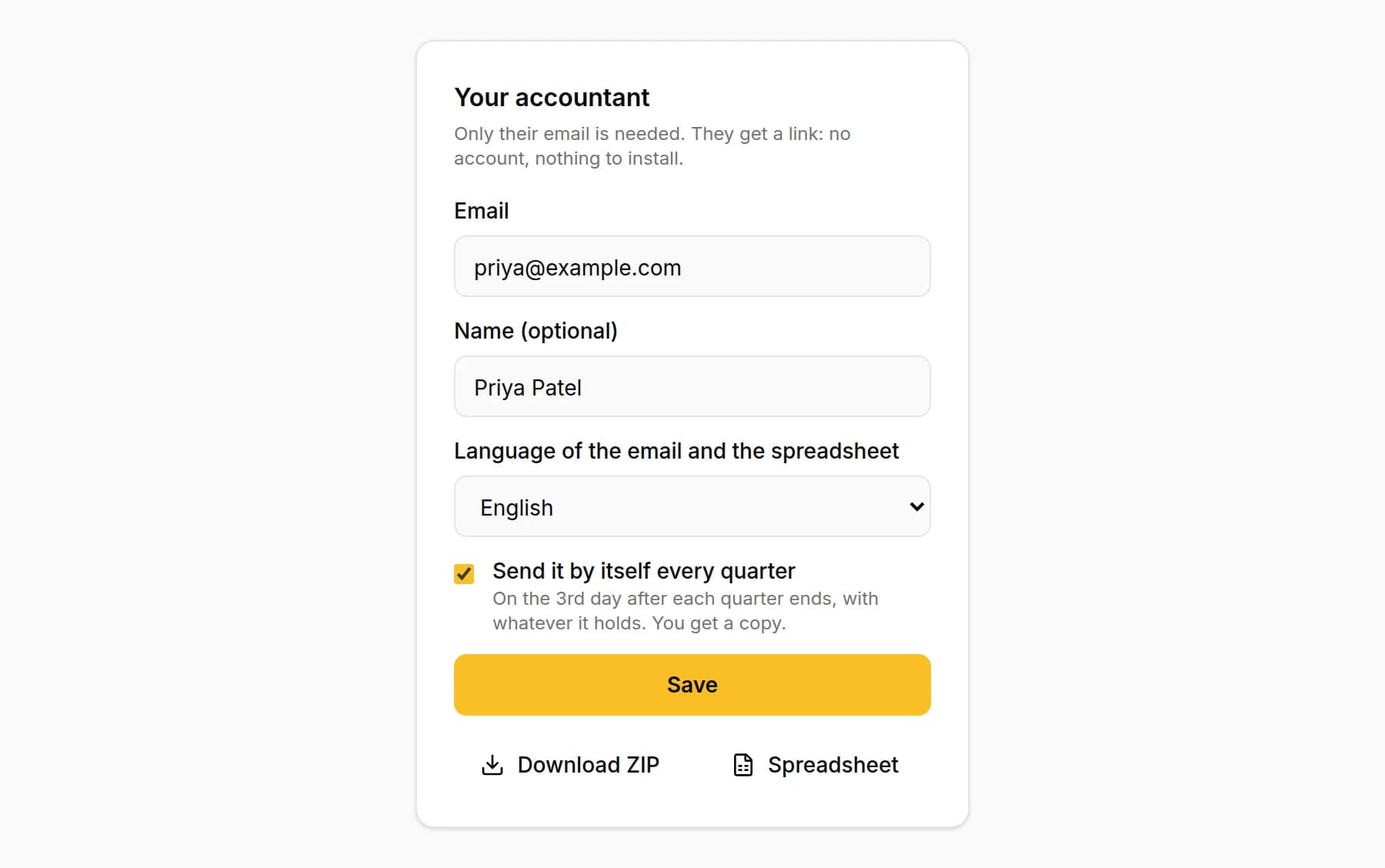
Under Your accountant, type their email. The name is optional. Pick the language of the email and the spreadsheet, which can differ from yours, and if you want it to go out by itself, tick Send it by itself every quarter. Press Save. You only do this once.
Press Send
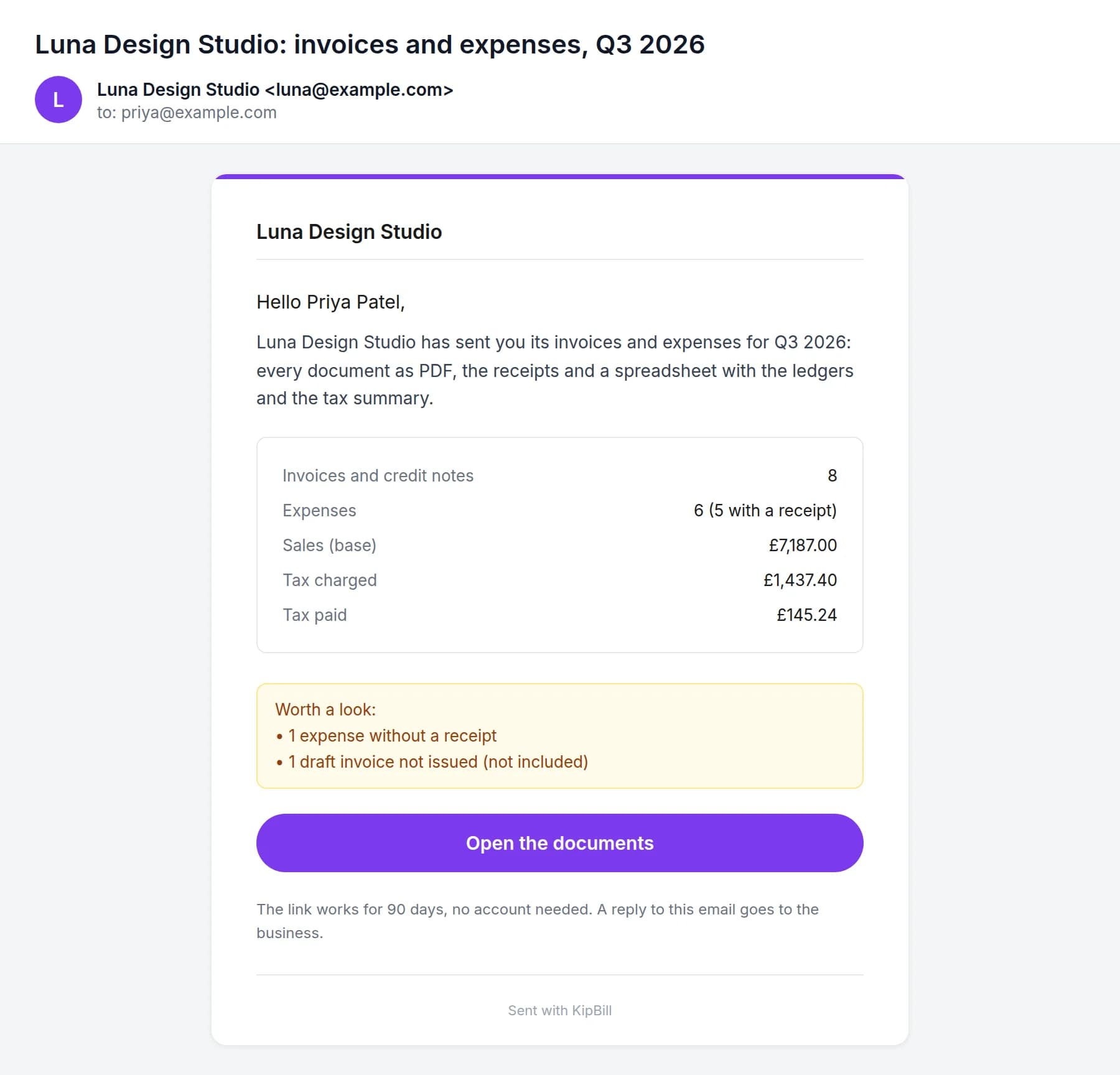
Press Send to followed by your accountant's email. They get an email with a summary of the period and an Open the documents button, and you get a copy of what they received.
Would you rather send it by WhatsApp or from your own email? Press Copy link and paste it wherever you like. See what they get opens their page as they will see it. And Download ZIP and Spreadsheet download the files for you.
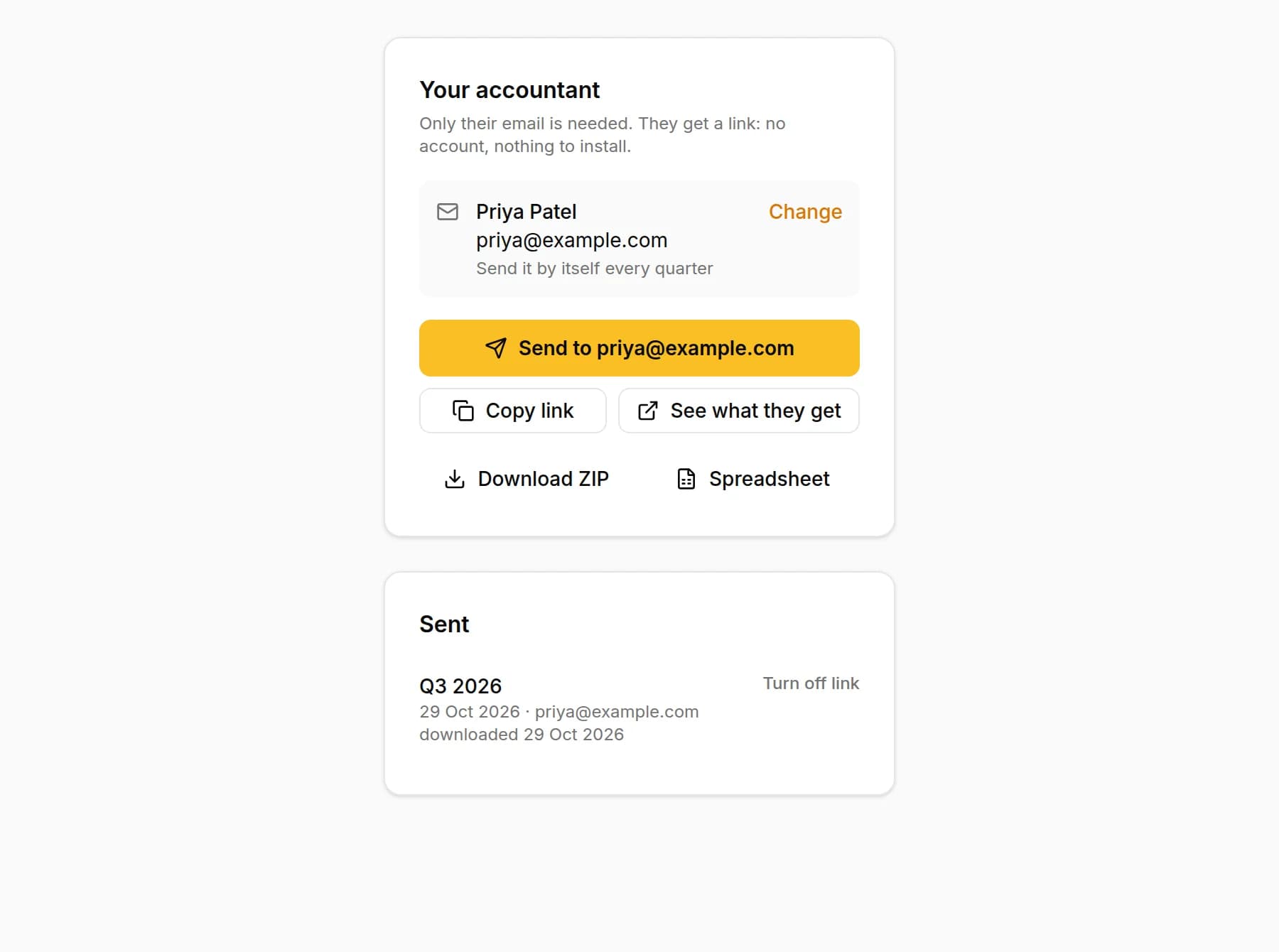
What your accountant gets
An email with the summary
It comes in your business's name, with the period, how many invoices and expenses there are, the main figures, what is worth a look and a button in your brand colour. If they reply, the reply comes to you.
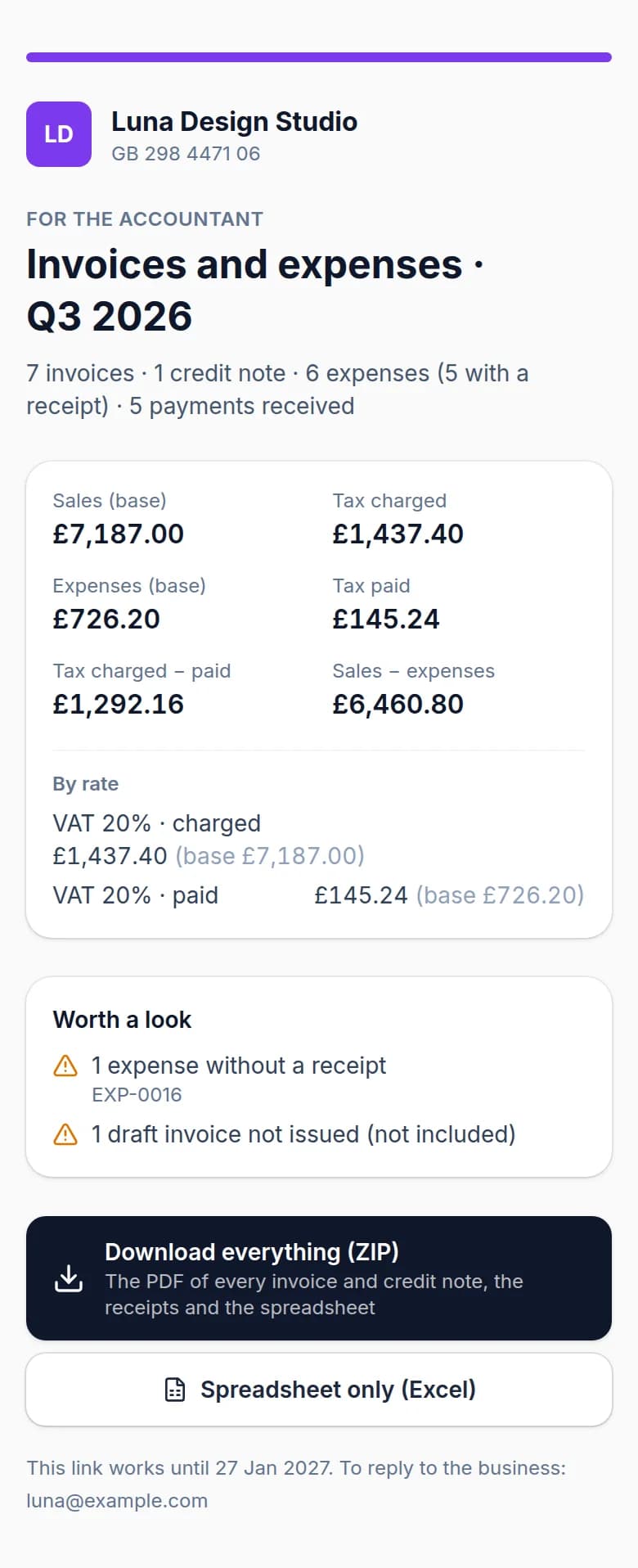
A page to download everything
The button opens a page with the period's figures by currency and tax rate, what is worth a look and two downloads: Download everything (ZIP) and Spreadsheet only (Excel). It works on a computer and on a phone, with no account to create.
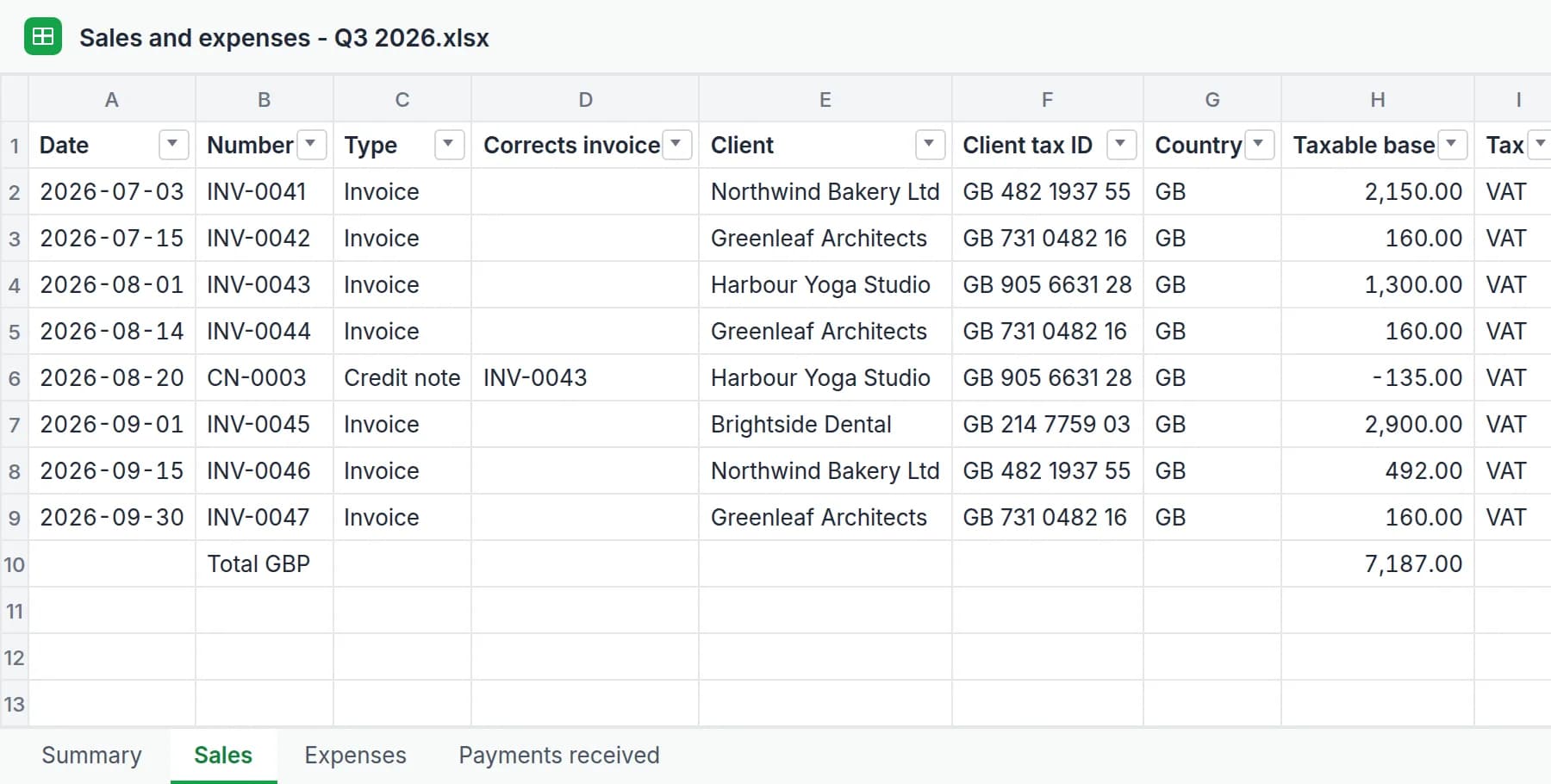
The ZIP
- Sales and expenses - Q3 2026.xlsx: the spreadsheet.
- Invoices: every invoice as PDF, exactly as your client received it, with your template, your logo and its language.
- Credit notes: every credit note as PDF.
- Expense receipts: the photo or PDF of each receipt, as you uploaded it.
- README.txt: what is in the folder.
Each file name has the date, the number and the client's or supplier's name, so they sort themselves.
The Excel
It has four sheets. Dates and amounts are real dates and numbers, so your accountant can sort, filter and add up:
- Summary: per currency, sales by tax rate, withholding, expenses by tax rate, the result, tax charged minus tax paid, payments received and what is worth a look.
- Sales: one row per invoice and tax rate, with the client's tax ID. Credit notes are negative and cancelled invoices are listed but not counted.
- Expenses: one row per expense, with the supplier's tax ID and the name of its receipt's file in the ZIP.
- Payments received: every payment of the period, with its invoice, the client and how it was paid.
Let it go out by itself every quarter
Tick Send it by itself every quarter in your accountant's details. On the 3rd day after each quarter ends (3 January, 3 April, 3 July and 3 October), KipBill sends them the quarter with whatever it holds at that moment, and you get a copy.
If you haven't switched it on, the Dashboard reminds you during the first days of each quarter that the last one is ready for your accountant, with a button to send it.
So that no expense arrives without its receipt, snap the receipt when you pay: in Expenses → Scan Receipt, the AI reads the supplier, the date, the tax and the total, and keeps the photo with the expense. Without an account, try the free receipt scanner.
Know whether they opened it
Under Sent you see each sending: the period, when and to whom, and whether your accountant has not opened it yet, opened it or downloaded it, with the date. Your own looks through See what they get don't count.
Typed the wrong address, or don't want the link to work any more? Press Turn off link and it stops working at once.
If you change something after sending it
The link always shows the period's documents as they are at that moment. If after sending it you add a missing tax ID, upload a receipt or issue an invoice dated in that quarter, your accountant sees it when they open or download it. There's no need to send it again.
It works in any country
It doesn't rely on any official format: it's your own documents as PDF and an Excel with your ledgers, in each invoice's currency and with its taxes (VAT, GST, sales tax, withholding or others). If you invoice in several currencies, each one gets its own block and they are never added together. The email and the Excel can be in any of KipBill's 12 languages.
Which plan you need
For your accountant comes with the Starter, Pro and Business plans. On the Free plan you can open it and see how many invoices, expenses and payments would go and what is worth fixing, but not the amounts; to send or download it you need Starter. See the pricing.
In a team, the business's owner and admins can send it.
Frequently asked questions
Does my accountant need a KipBill account?
No. They get an email with a link and download everything from a page, with no account and nothing to install. It works on a computer and on a phone.
What exactly do they get?
Every invoice and credit note of the period as PDF, exactly as your clients received them; your expense receipts as you uploaded them; and an Excel with a summary, the sales ledger, the expense ledger and the payments received. All in one ZIP, with a README that explains what is inside.
What format is the spreadsheet?
An .xlsx file that opens in Excel, Google Sheets, LibreOffice or Numbers. Dates and amounts are real dates and numbers, so your accountant can sort, filter and add up.
Can I send it by WhatsApp?
Yes. Press Copy link and paste it into WhatsApp, your own email or anywhere else. The link works for 90 days.
Can I turn off a link I already sent?
Yes. Under Sent, press Turn off link next to it and it stops working at once.
What if I fix something after sending it?
The link always shows the period's documents as they are at that moment. If you add a tax ID or upload a receipt afterwards, your accountant sees it when they open or download it, with no need to send it again.
Are draft invoices included?
No. Before you send it, KipBill tells you how many invoices are still drafts. Cancelled invoices are listed in the sales ledger but don't count in the totals.
Can I send a month or a whole year?
Yes. You can pick a quarter, a month or a whole year.
Can it go out by itself every quarter?
Yes. Tick Send it by itself every quarter in your accountant's details: KipBill sends it on the 3rd day after each quarter ends, with whatever the quarter holds, and you get a copy.
Which plan do I need?
Starter, Pro or Business. On the Free plan you can open For your accountant and see what would go and what to review, without the amounts; to send or download it you need Starter.
Does it work with several currencies or in another country?
Yes. Each invoice keeps its own currency and taxes (VAT, GST, withholding or others), and each currency gets its own block: amounts in different currencies are never added together.
Start invoicing for free
Create professional invoices in minutes with KipBill, like freelancers and small businesses in 40+ countries.

KipBill Team
Related Articles

How to Invoice International Clients: A Freelancer's Guide
How to invoice international clients: which currency to use, cutting transfer fees, VAT and reverse charge, and the best ways to get paid on time.

Invoicing for Tutors and Teachers: The Complete Guide
How tutors and teachers should invoice students: per-session vs. package billing, recurring invoices, sibling discounts, no-show policies, and parent receipts.
AI Invoice Generator: Create and Send Invoices with Voice and Chat
KipBill's AI invoice generator lets you create, send, and manage invoices by voice or chat. Powered by Claude and OpenAI Whisper. 45 AI tools, 12 languages, free plan available.
Start invoicing for free
Create professional invoices in minutes with KipBill, like freelancers and small businesses in 40+ countries.